
OBS Studio
The OBS Studio layout talks to OBS over its WebSocket server. Record and Stream show what OBS is really doing; the status strip says READY, REC or LIVE with the scene on air; the Preview shows that scene; Scenes lists your scenes and the current scene’s sources, so a tap switches scenes or hides a source; the mixer has a fader for each audio input.
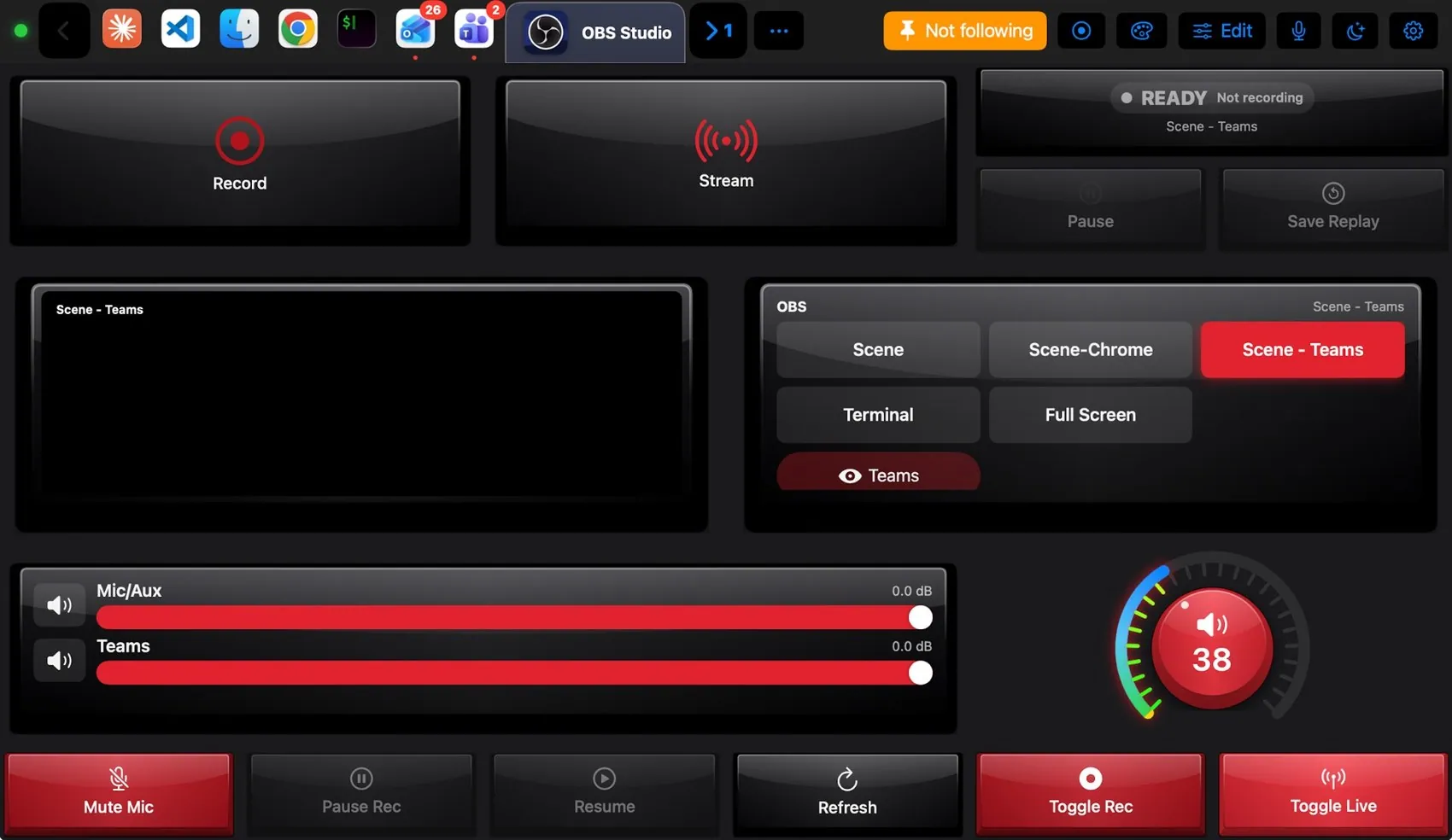

Every control, explained.
Point at a key on the pad above or on a row below: both light up. These are the keys of the built-in OBS Studio layout and what each one sends to the Mac.
More than keys.

Lit only while OBS is really recording or streaming. Pause and Save Replay next to them.
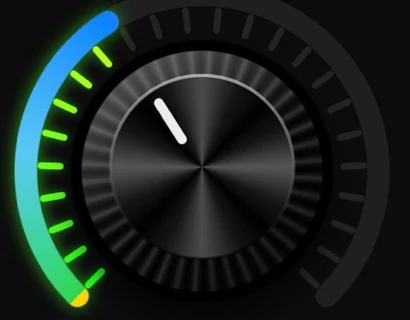
The Mac’s output volume, both ways.
What the Mac and the pad share.
On the Mac
- Recording, paused, streaming and the scene on air, pushed the moment they change
- Every scene and the current scene’s sources, with visibility
- Audio inputs with their level, mute and fader
- When OBS quits the pad says “OBS not connected”
The OBS Studio plugin
- OBS Studio layout: status, preview, scenes, mixer, Record, Stream, Pause, Save Replay
- OBS commands: start/stop/toggle record and stream, pause, resume, set scene, show/hide source, mute input, save replay
- Corsair K70 RGB theme suggestion
It may
- Talks to OBS on this Mac (WebSocket, port 4455)
Ideas to start from.
Build these in Settings ▸ Macros with blocks, then put them on a key, a Siri phrase or a trigger. Steps in bold are what you fill in.
Go live
Recording finished
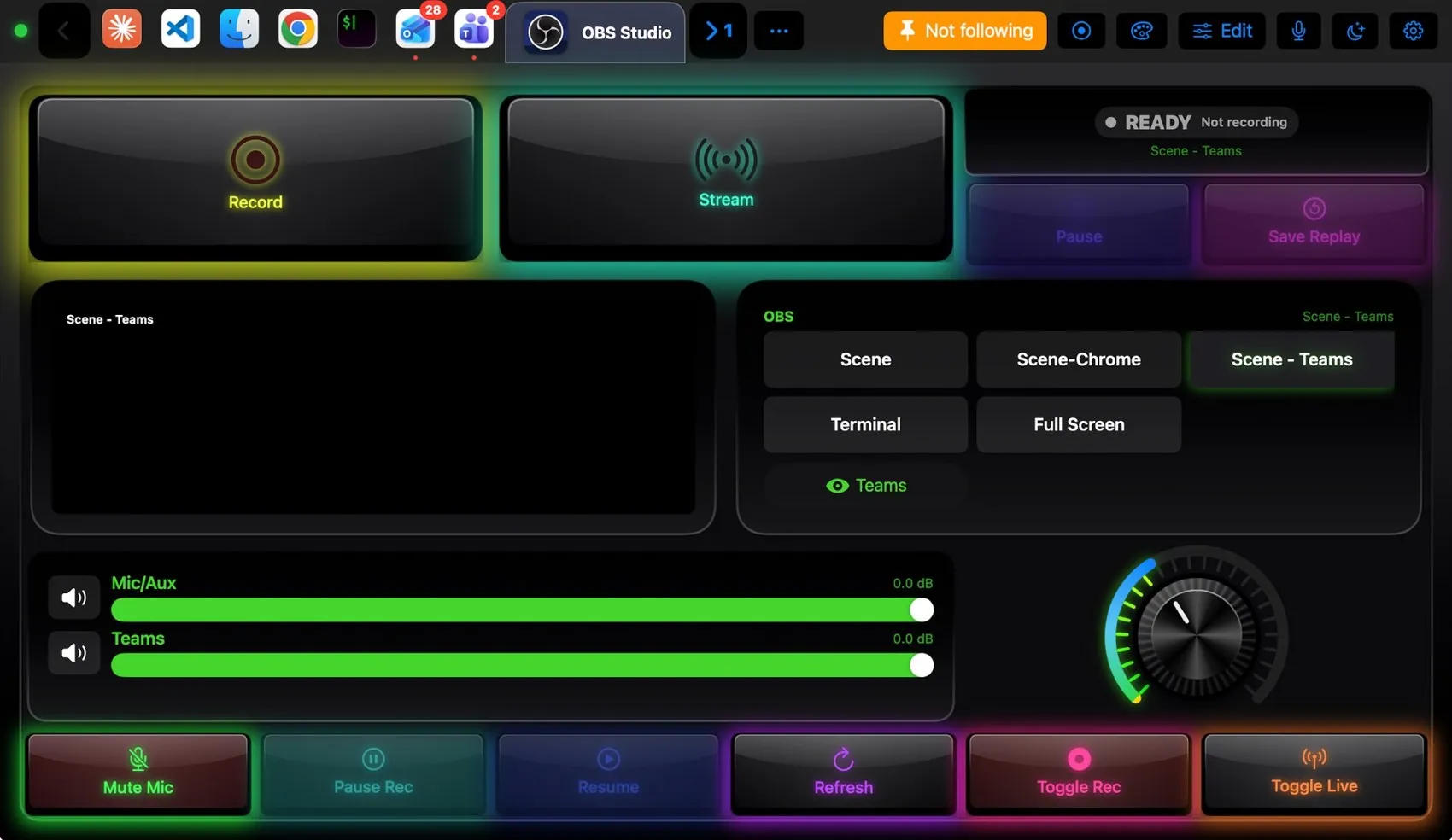
Dress it like the app.
Any of the 104 themes works on this layout. Pin one to this app and only OBS Studio wears it.
 Final Cut Pro
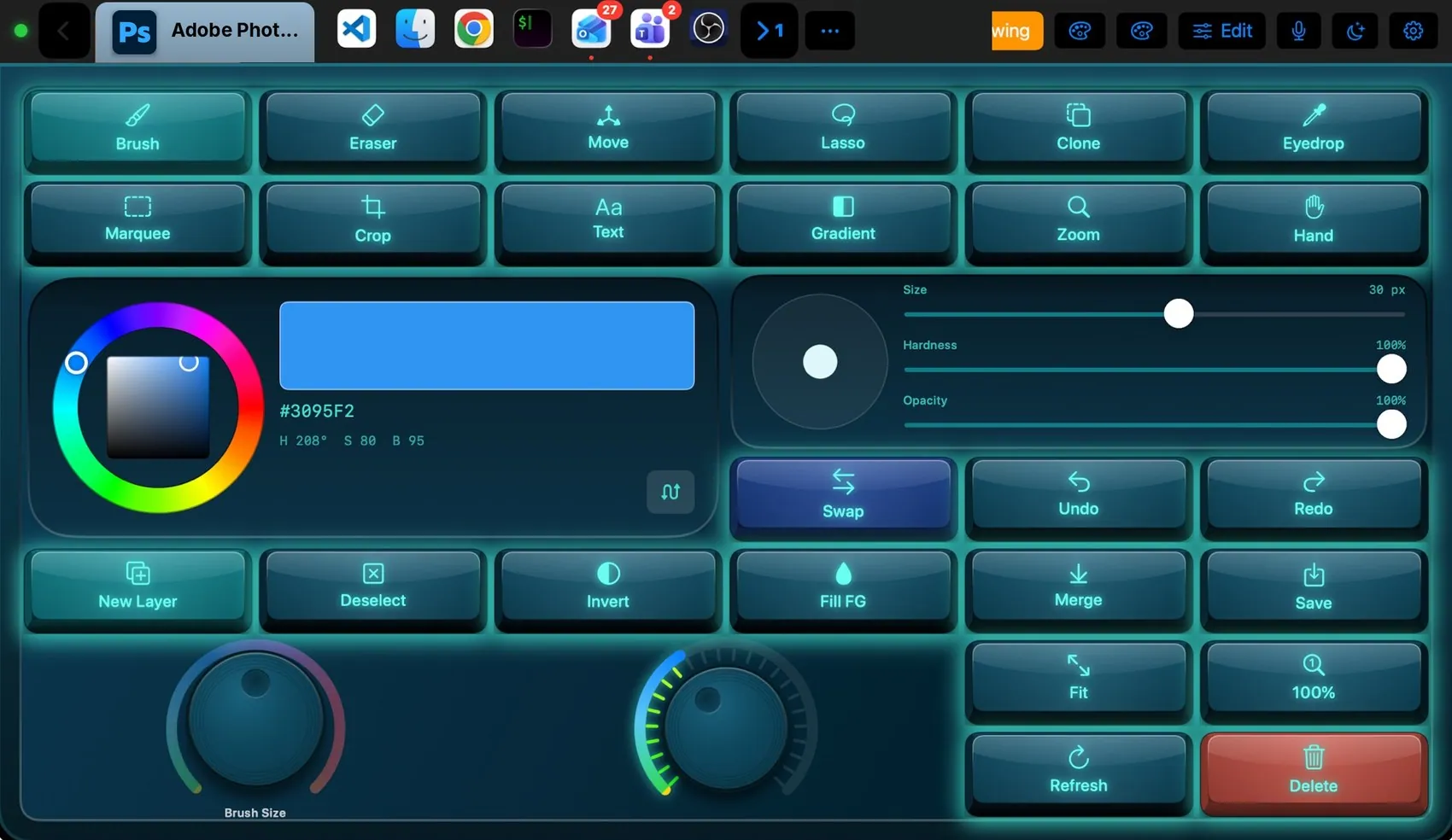
 Photoshop
 Teams
Teams Claude
 VS Code
 Logic Pro
 Excel
Excel Blender
 Spotify