iMacroPad
Turn your iPad or iPhone into a control deck for the Mac: real keys, knobs, faders, a trackpad and a trackball that follow whatever app is in front.

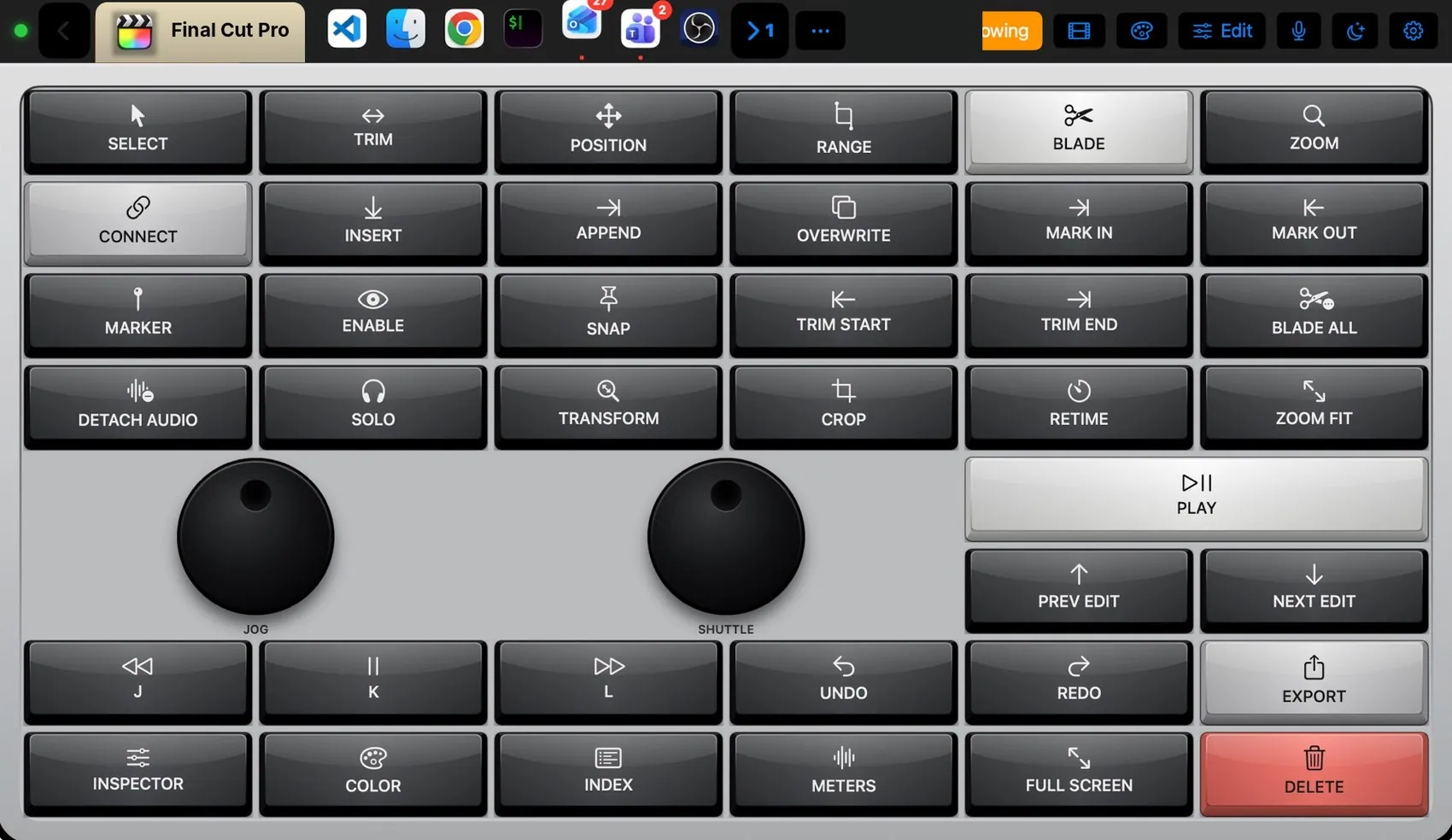
 Final Cut Pro
Built for the apps you live in.
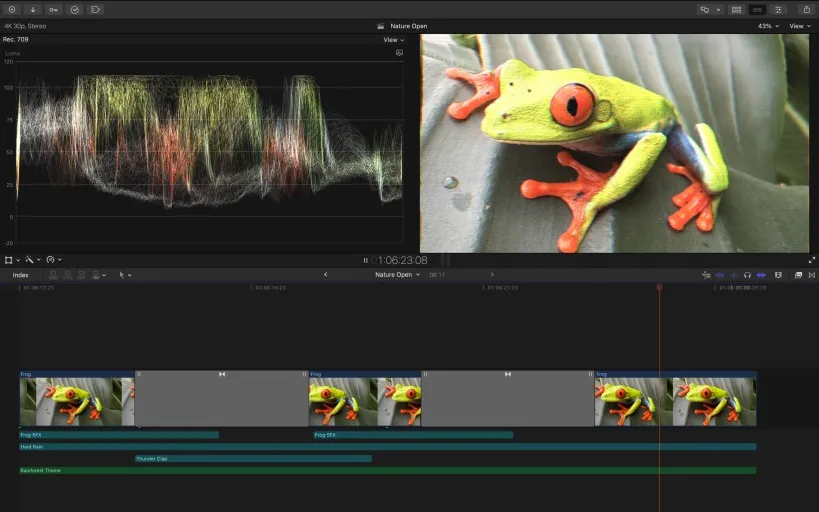
Every app gets its own layout, its own theme and its own keys, checked against the app’s menus. Where the app talks back, the pad shows its real state: OBS recording, Photoshop’s colour, Teams’ mic, the Mac’s volume. Bring an app to the front on the Mac and the pad changes with it.

Not a fixed grid.
A canvas.
A hardware deck is one grid, one key size, one device. On iMacroPad every control is software: put a knob, a trackball, a scroll wheel or a key anywhere, make it 1 × 1 or 4 × 4, take it away again. This is the real editor’s grid, with controls cut from the app. Try it.
 Edit mode
Selected
Add a control
On the iPad: tap Edit, drag to move, pinch to resize, tap a key for its inspector, Add for every kind of control.
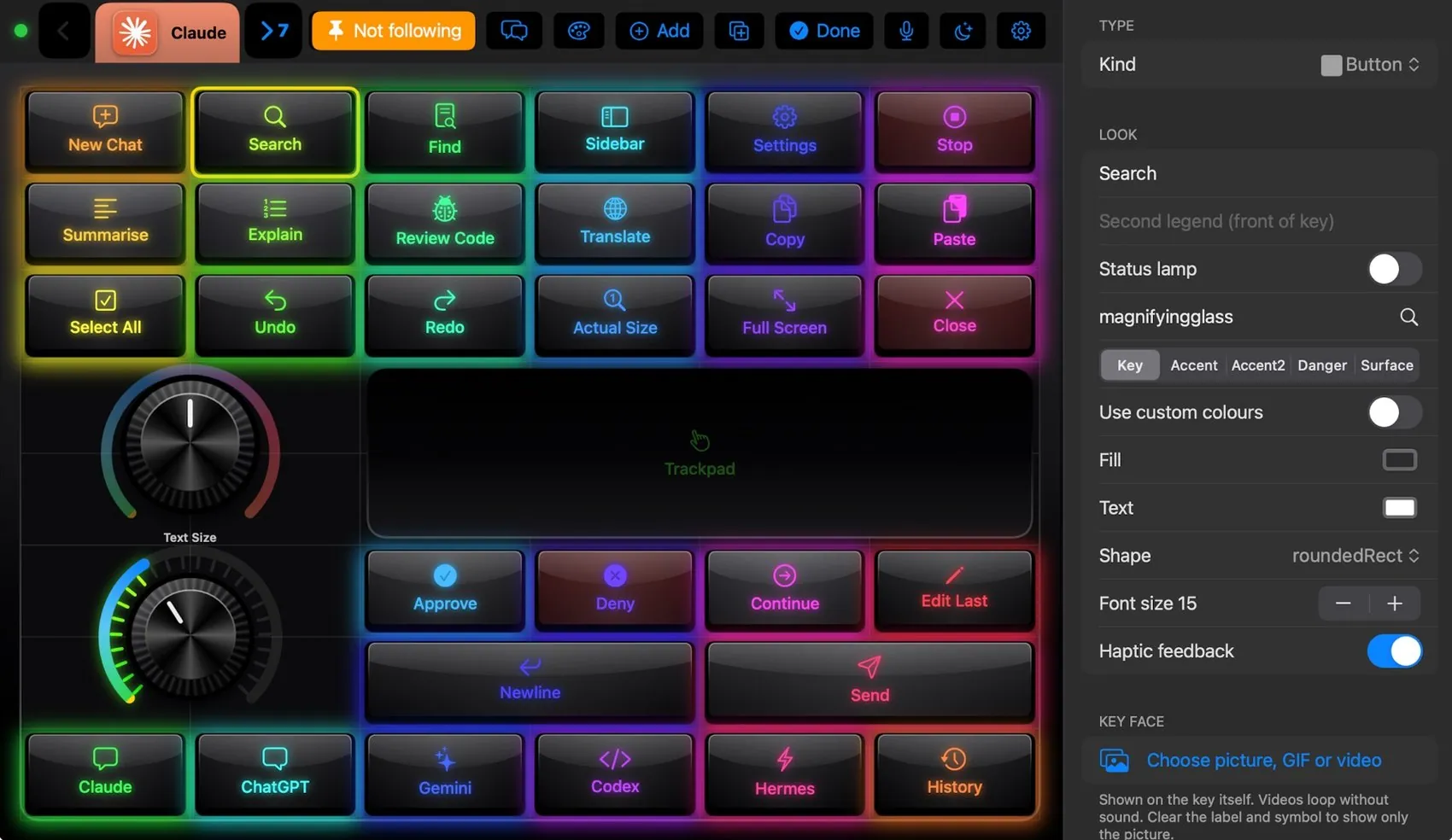
The real editor.
Tap Edit on the pad and the layout goes soft: drag to move, pinch to resize, tap a key and its inspector opens with kind, colour, label, icon and action. The action can be a shortcut, any menu item by name, a macro, a Shortcut, an app, a media key or typed text.
- 81 ready layouts by app and by role, filtered in the layout picker
- Every widget of every layout is in the component library, to drop on any other layout
- A photo, GIF or looping video on any key face
- Layouts follow the Mac’s app, stay pinned, or target one app in the background
Every control surface.
One sheet of glass.
MIDI keyboard, shuttle wheel, colour panel, trackball, mixer, Magic Trackpad, stream deck. iMacroPad draws all of their parts with haptics, and any of them goes on any layout at any size. Each one below is cut straight from the app, and each one works: turn, roll, slide, tap.
When it rests, it reports.
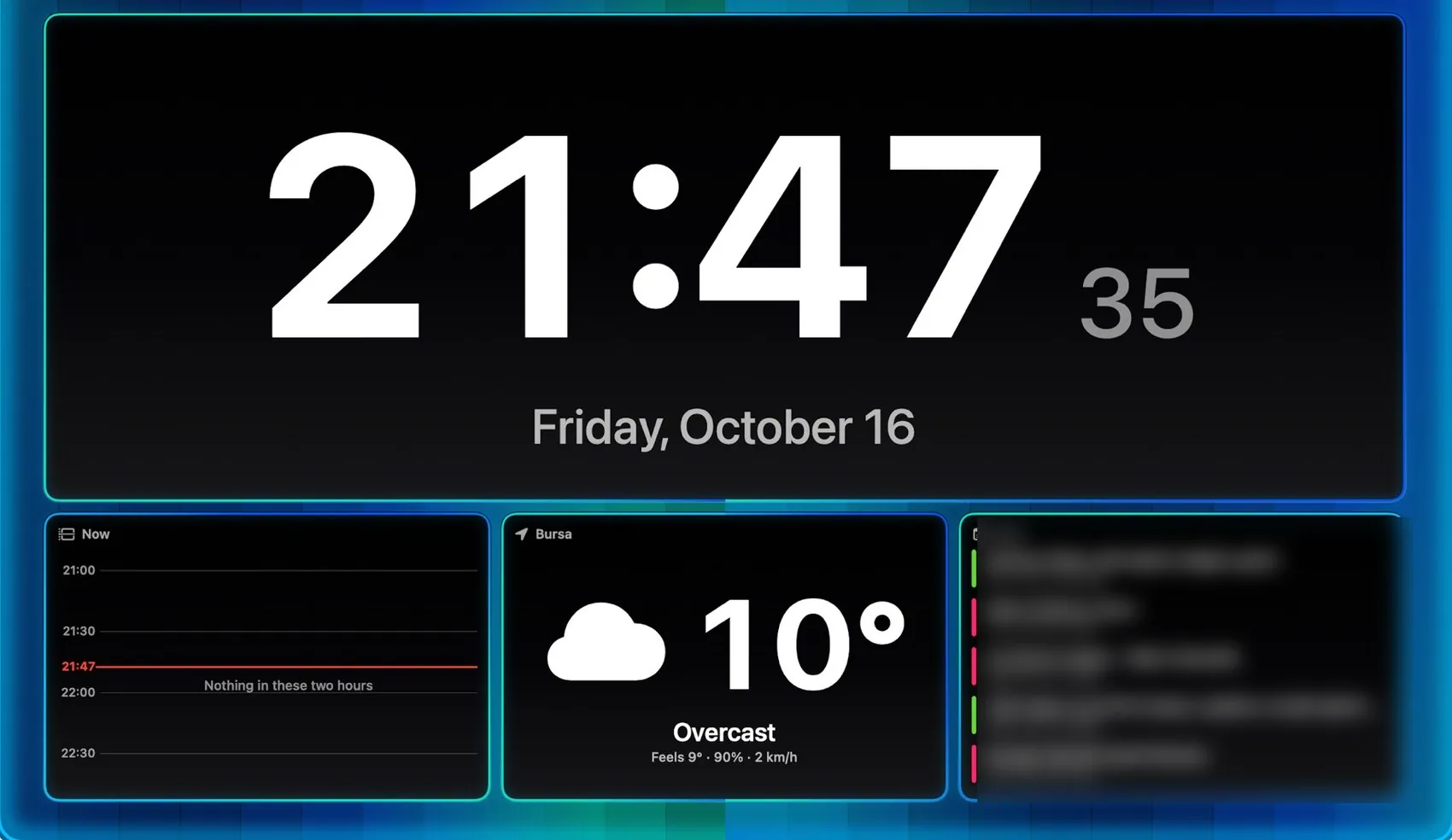
A dashboard, until you tap.
Leave the pad alone and it turns into information: clocks, your calendar and the hour ahead, weather, the Mac’s CPU, memory and network, what is playing, what is waiting, your AI sessions. One tap in, one tap out, or by itself after a few idle minutes or in set hours. Two fingers up or down set the brightness; left and right change the scene.
Macros, voice, widgets, plugins.
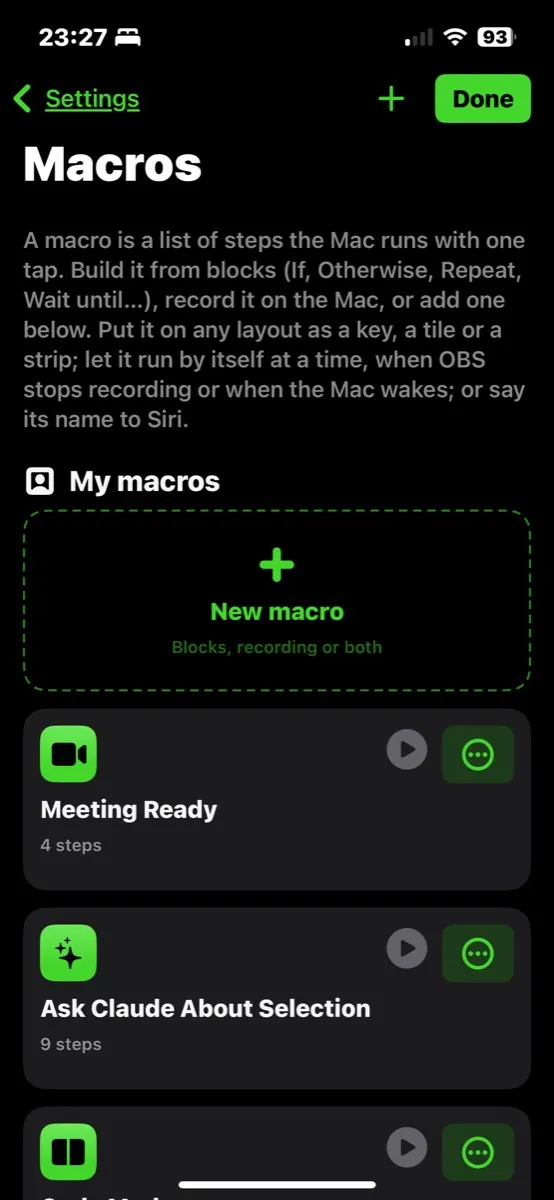
Macros you build like blocks.
Try it: drag steps from the palette into Then or Otherwise, drag them to reorder or between branches, × to remove, tap a trigger to switch it on or off, pick a condition, then press Run. The real editor on the iPad works the same way.
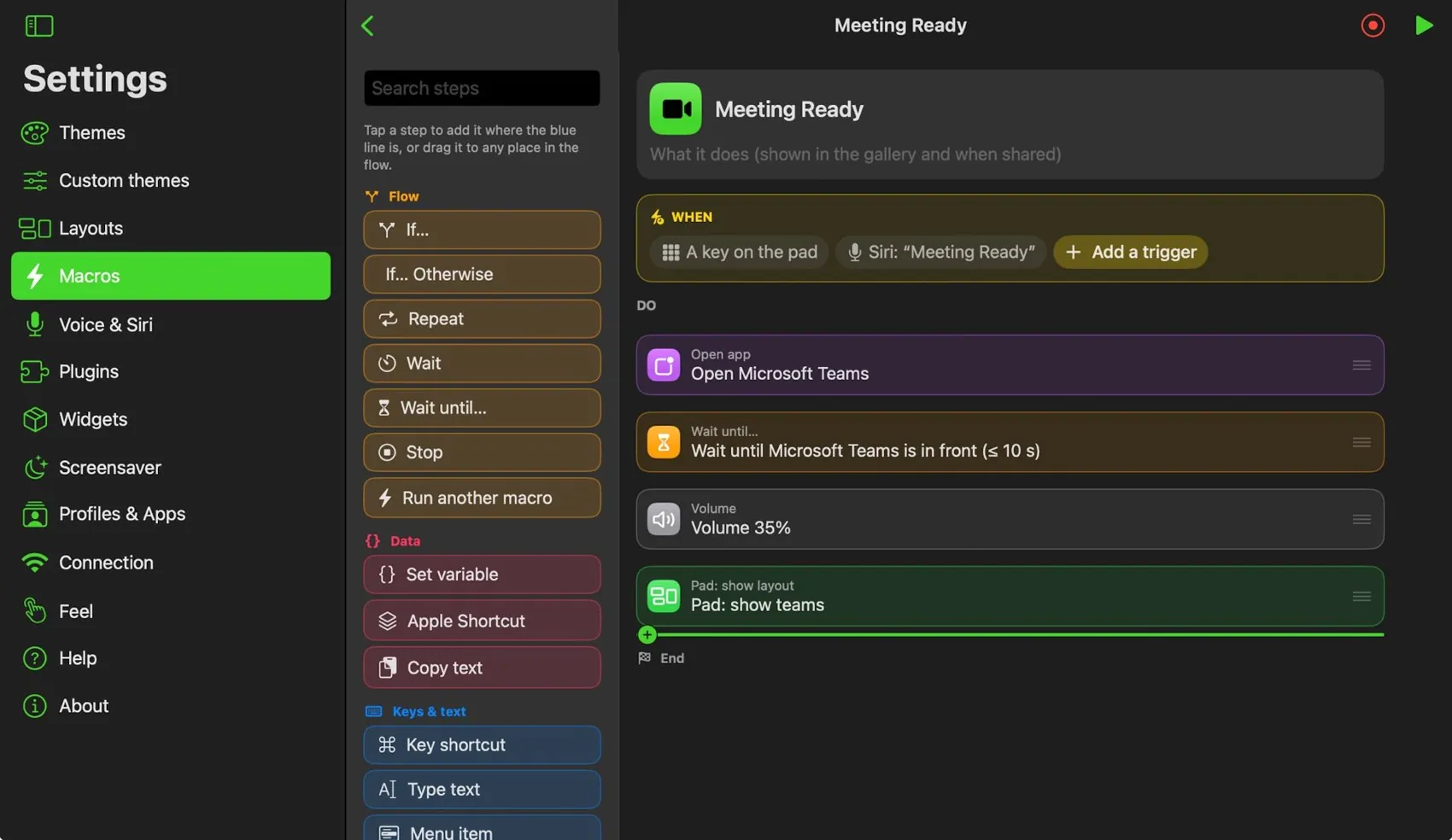
Palette
Drag a step into the flow, or tap it to add it to the branch you used last.
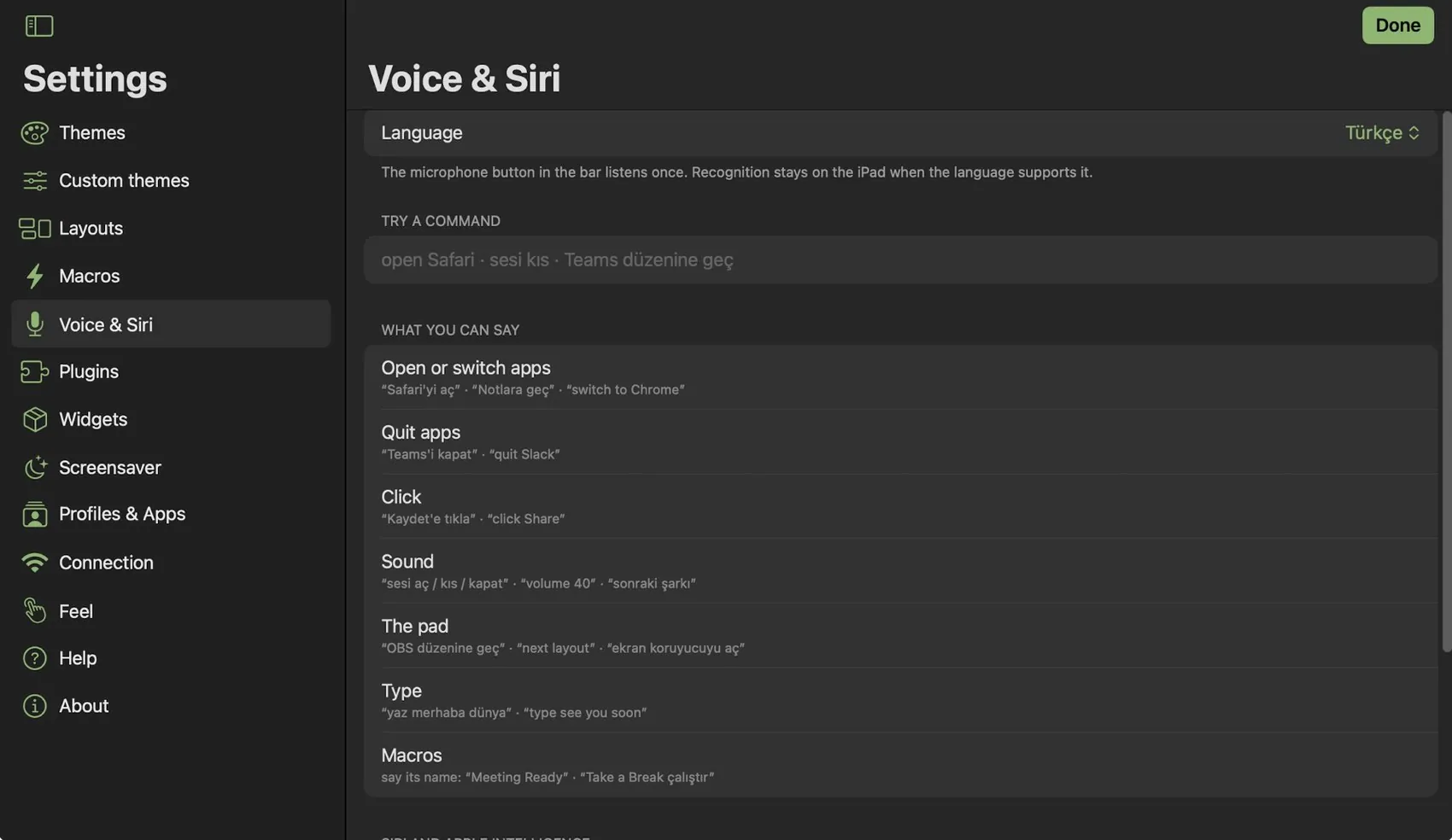
Say it. Done.
Every macro is a Siri phrase and a Shortcuts action. The microphone in the bar listens in English or Turkish and opens apps, sets the volume, switches layouts and runs macros by name.
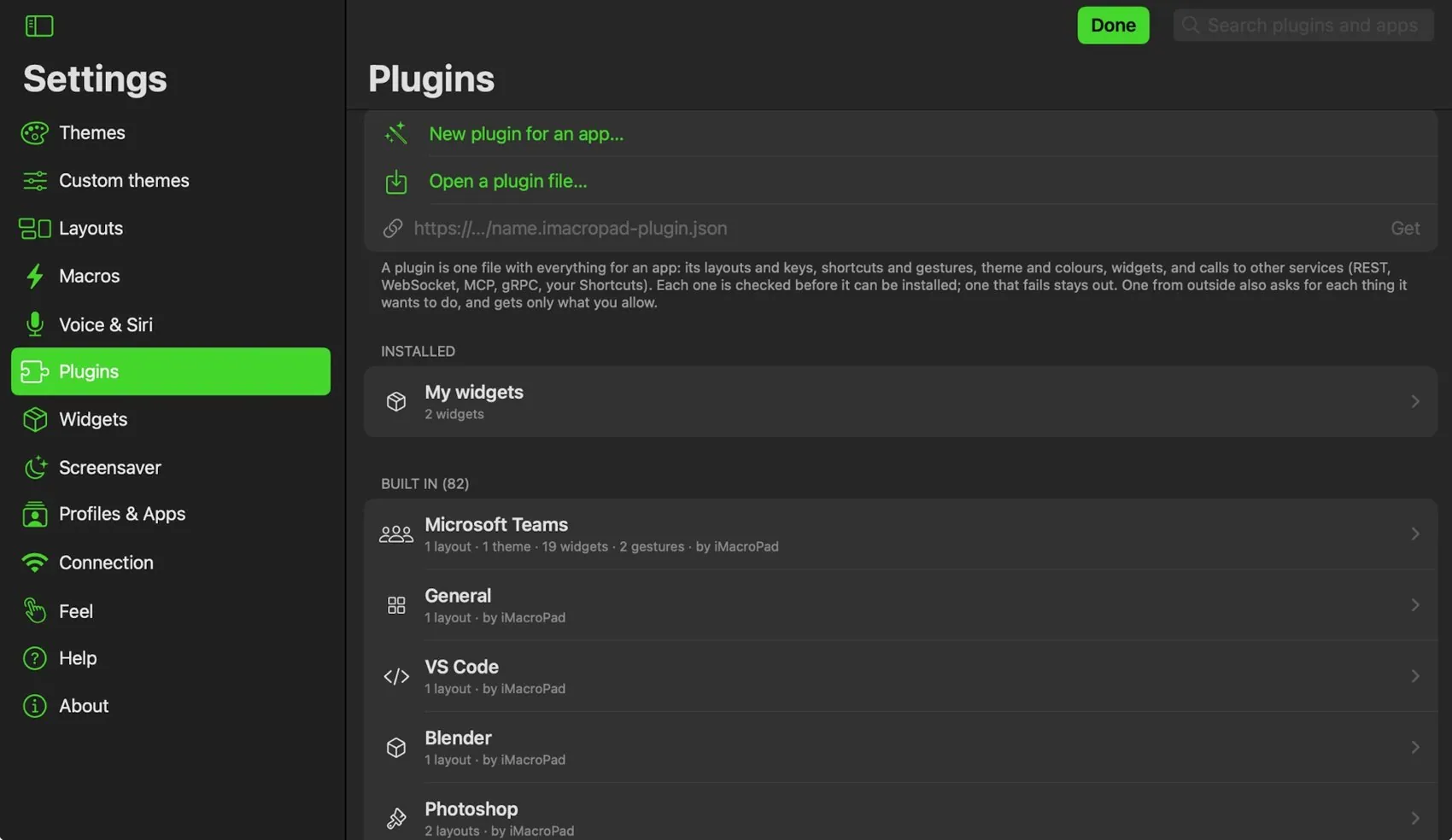
Widgets you make. Plugins that carry an app.
Make keys, dials, sliders and scroll wheels of your own, or Markdown, static HTML and chart widgets, and share them in packs. A plugin holds everything about one app: layouts, shortcuts, gestures, theme and calls to other services. It asks for each thing it wants, with a reason, and nothing in it can run code.
Looks like the board on your desk.
104 themes copy the colours and parts of real keyboards and control surfaces: sculpted, glass, crystal and leather keys; knurled knobs; per-key RGB; a case around the plate. Keys press down and spring back. Every app above wears its own. Pick one and this section takes its colour.
The deck in your pocket.
Same app, same Mac, one hand.
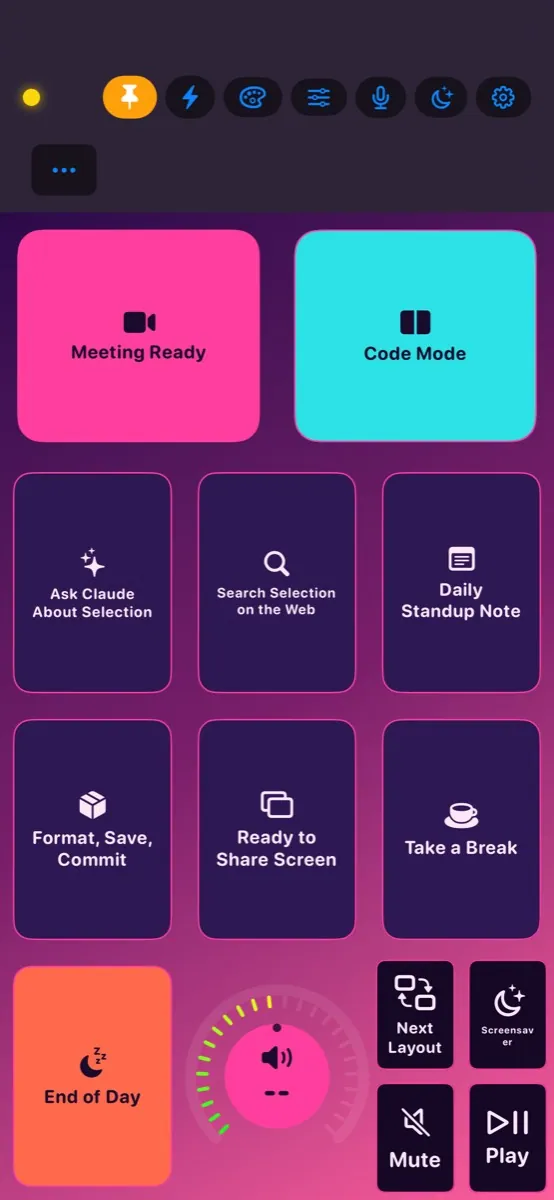
The iPhone runs the same layouts, scaled to its screen. Upright, the bar splits into a row of buttons with the Mac’s apps under it; sideways it is one row, like the iPad. It finds the Mac on your Wi‑Fi and pairs the same way, so the phone next to your keyboard becomes a second deck for macros, media and meetings.
Pay once. Use it on three devices.
One lifetime licence covers your Mac, your iPad and your iPhone. No subscription, no account, nothing leaves your network.