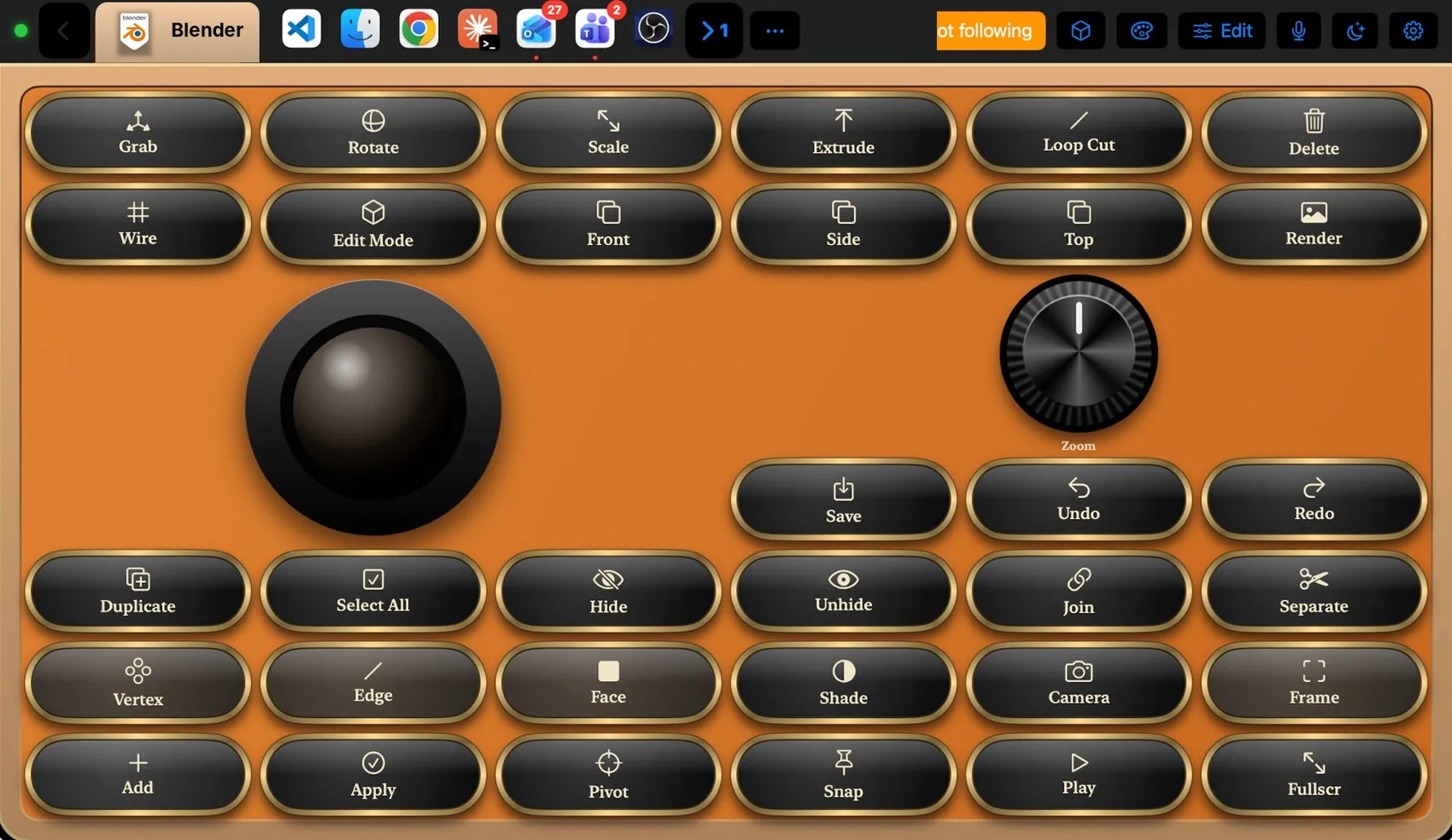
Grab, Rotate, Scale, Extrude, Loop Cut and Delete; Wire and Edit Mode; Front, Side and Top views; Render; Vertex, Edge and Face select modes; Duplicate, Join, Separate, Hide and Unhide; Shade, Camera, Frame, Snap, Pivot and Play. A big trackball orbits the view and a knob zooms.
Orange leather plate and brass-ringed keys, Blender’s own orange
The layout
Every control, explained.
Point at a key on the pad above or on a row below: both light up. These are the keys of the built-in Blender layout and what each one sends to the Mac.
GrabG
RotateR
ScaleS
ExtrudeE
Loop Cut⌃R
DeleteX
Wire⇧Z
Edit ModeTab
FrontNumpad 1
SideNumpad 3
TopNumpad 7
RenderF12
ZoomTurn3 × 2 cells
Save⌘S
Undo⌘Z
Redo⇧⌘Z
Duplicate⇧D
Select AllA
HideH
Unhide⌥H
Join⌘J
SeparateP
Vertex1
Edge2
Face3
ShadeZ
CameraNumpad 0
Framekp.
Add⇧A
Apply⌘A
Pivot.
Snap⇧Tab
PlaySpace
Fullscr⌃Space
TrackballOrbits the 3D view (middle-drag)3 × 3 cells
Controls
More than keys.
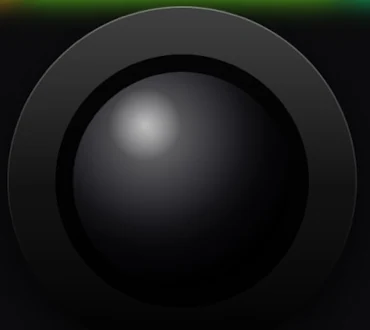
Trackball
Orbits the viewport with momentum, like a middle-drag.
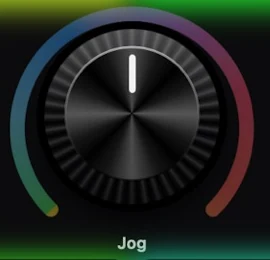
Zoom knob
Zooms the 3D view one step per detent.
Integration
What the Mac and the pad share.
On the Mac
Follows Blender
View keys use Blender’s numpad view shortcuts
The Blender plugin
Blender layout
Retro Classic Leather theme suggestion
It may
Keys in Blender
Macros
Ideas to start from.
Build these in Settings ▸ Macros with blocks, then put them on a key, a Siri phrase or a trigger. Steps in bold are what you fill in.
Turntable render
WHEN Key on the pad
Press ⌘S
Press Numpad 0 (camera view)
Press F12 (render)
Themes
Dress it like the app.
Any of the 104 themes works on this layout. Pin one to this app and only Blender wears it.


 Trackball
 Zoom knob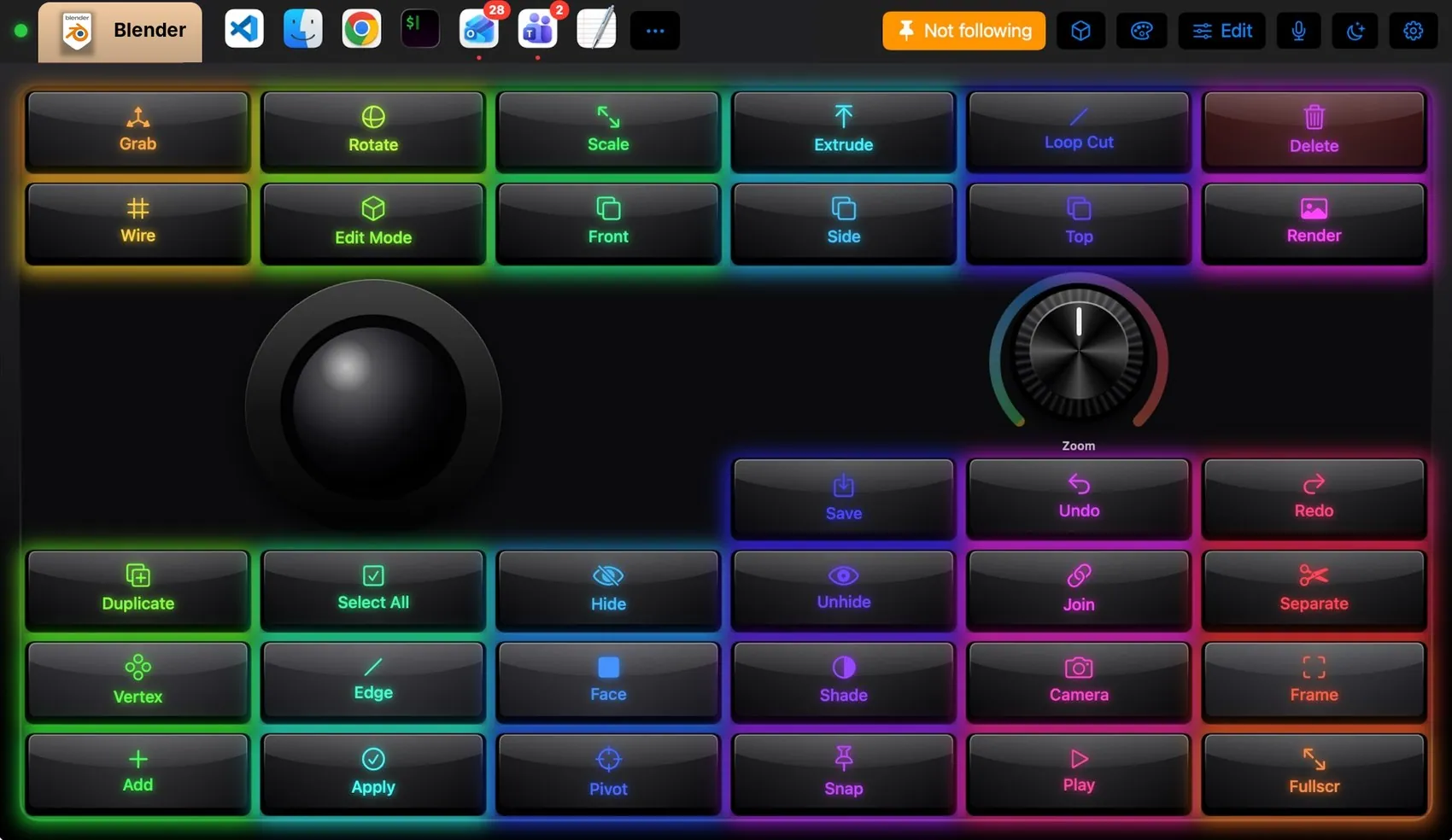
 Final Cut Pro
 Photoshop
 OBS Studio
 Teams
Teams Claude
 VS Code
 Logic Pro
 Excel
Excel Spotify