Help
Everything iMacroPad does, step by step, with screenshots of the real app. Start at the top if this is your first time; otherwise jump in from the list or search.
01What you need
iMacroPad has two halves. iMacroPad on the iPad or iPhone draws the keys, knobs and pads and sends what you press. iMacroPad for Mac, a small companion app, receives it and performs it on the Mac: key shortcuts, menu commands, scrolling, the pointer, the volume, and the app integrations (OBS, Photoshop, Teams).
| Device | Needs |
|---|---|
| Mac | macOS 13 Ventura or later |
| iPad | iPadOS 16 or later. Landscape is the native shape of every layout. |
| iPhone | iOS 16 or later |
| Network | Both on the same Wi‑Fi or wired network. What you press goes from the pad to the Mac over your own network only. |
02Set up the Mac
- Install iMacroPad for Mac and open it. The download will be on this site when iMacroPad launches. It lives in the menu bar and starts at login.
- Follow the setup guide. On first start a guide walks through each permission. You can open it again any time from the menu bar icon ▸ Setup Guide…
- Allow Accessibility. System Settings ▸ Privacy & Security ▸ Accessibility ▸ switch on iMacroPadD (the name iMacroPad for Mac has in that list). Without it macOS silently drops every key, scroll and menu command; the pad then shows a red notice on each press.
- Allow Automation when asked. The first time a key talks to Photoshop, Teams or System Events, macOS asks once. Choose OK.
- Optional: Screen Recording. Only needed for macros that click words on screen. Everything else works without it.
03Set up the iPad or iPhone
- Install iMacroPad on the iPad or iPhone and open it. It will be on the App Store when iMacroPad launches.
- Allow Local Network. iOS asks whether iMacroPad may find devices on your network. Choose Allow: this is how the pad finds the Mac by itself. (Changed your mind? Settings ▸ Privacy & Security ▸ Local Network ▸ iMacroPad.)
- Watch the dot. The dot at the top-left of the bar turns green when the Mac answers. Your Mac’s running apps appear next to it within a second.
04Connection and PIN
Settings (gear) ▸ Connection shows what the pad is talking to: the Mac’s name, the app in front, the protocol version of both sides, and a Reconnect button. Under Mac side you can see the Bonjour service, the port, how many apps are running, the volume, and whether OBS and Photoshop answer.
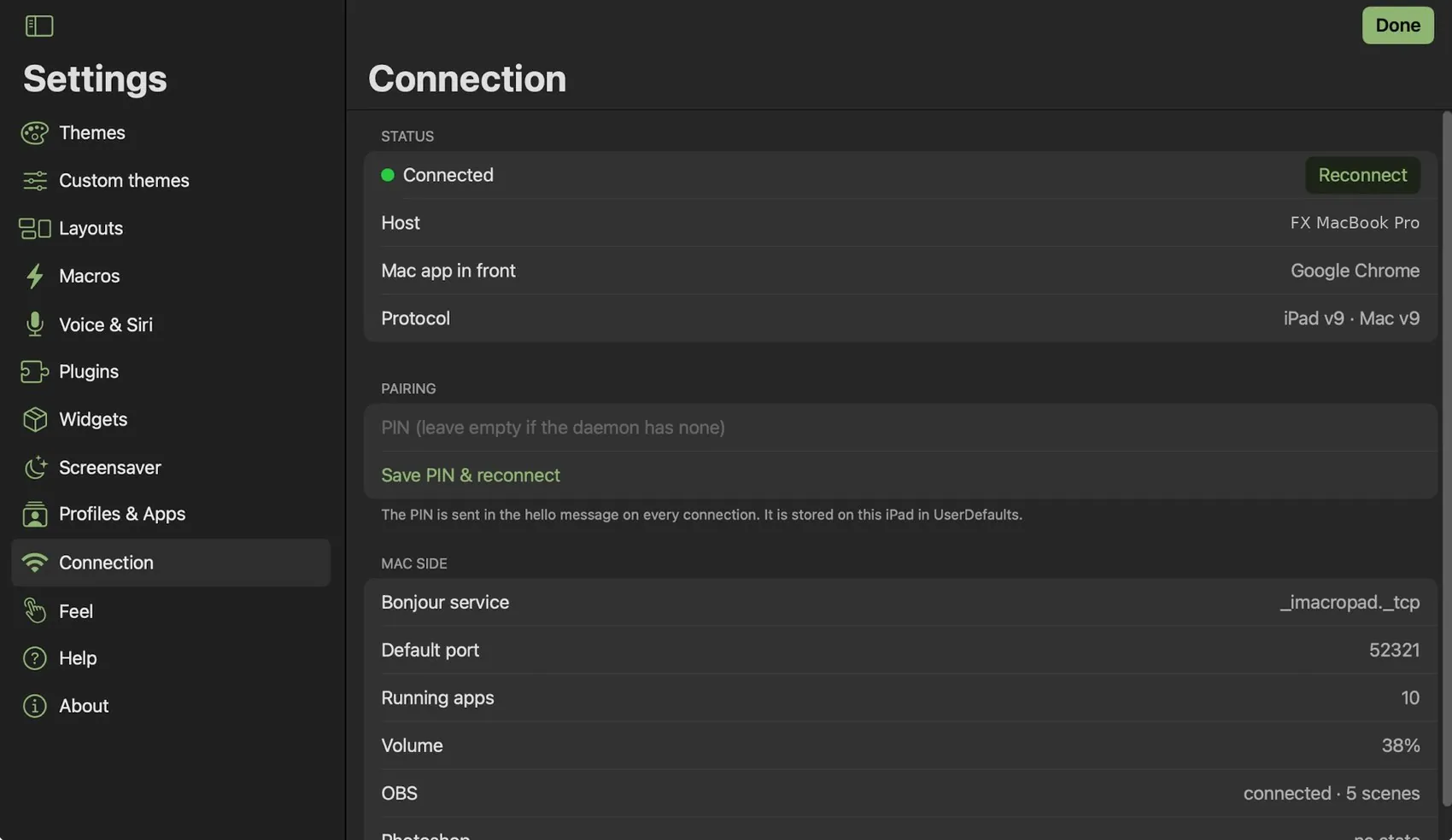
Pair with a PIN
Anyone on your network could otherwise send keys to the Mac. Set a PIN on the Mac (menu bar icon ▸ PIN: off — Set…), then type the same PIN under Pairing on the pad and tap Save PIN & reconnect. The PIN is sent with every connection and stored on the device. A wrong PIN turns the dot red with Unauthorized — check PIN.
05The pad and its bar
Every layout has the same bar across the top. Everything you need is one tap away.
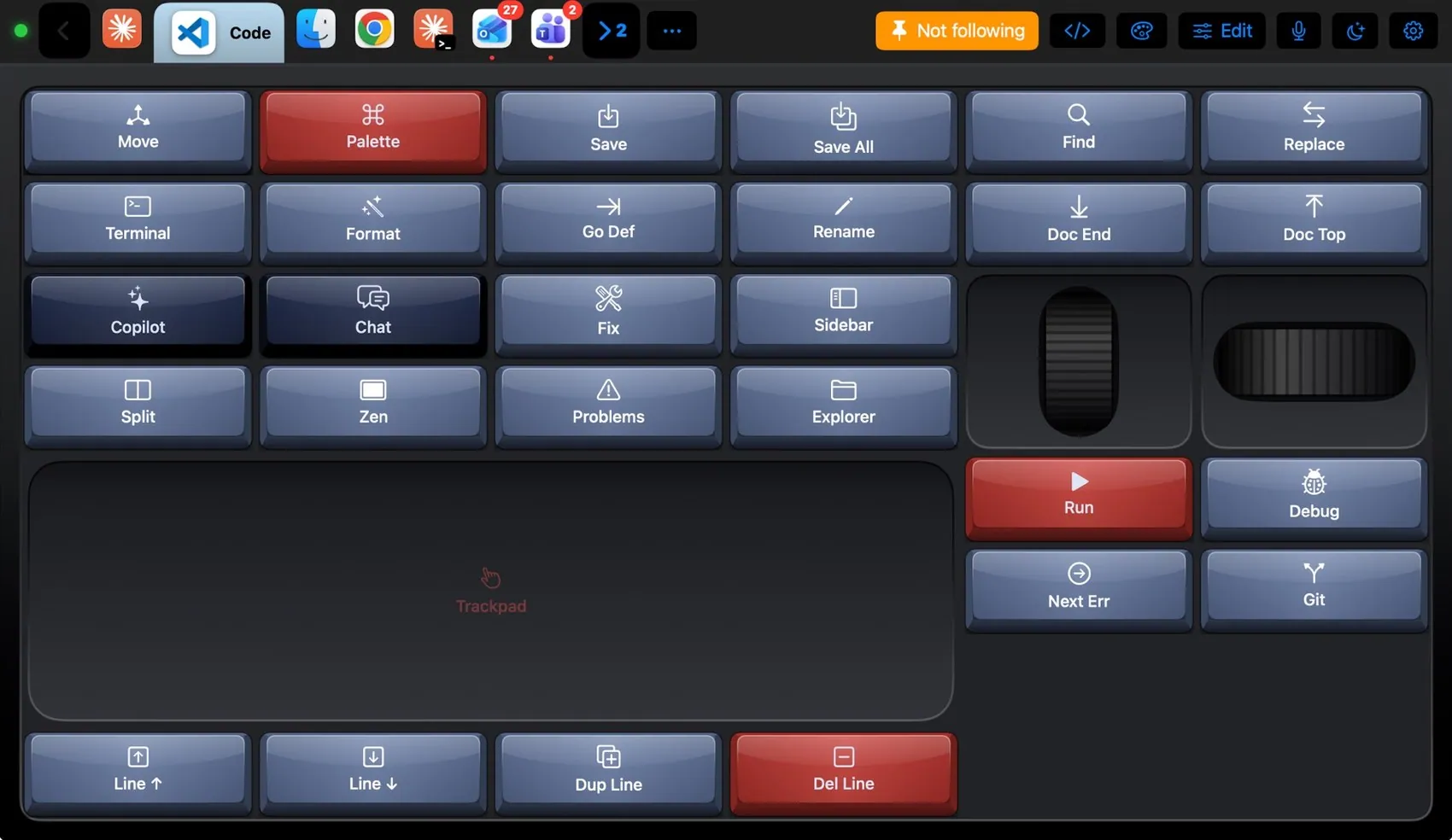 1234567891011
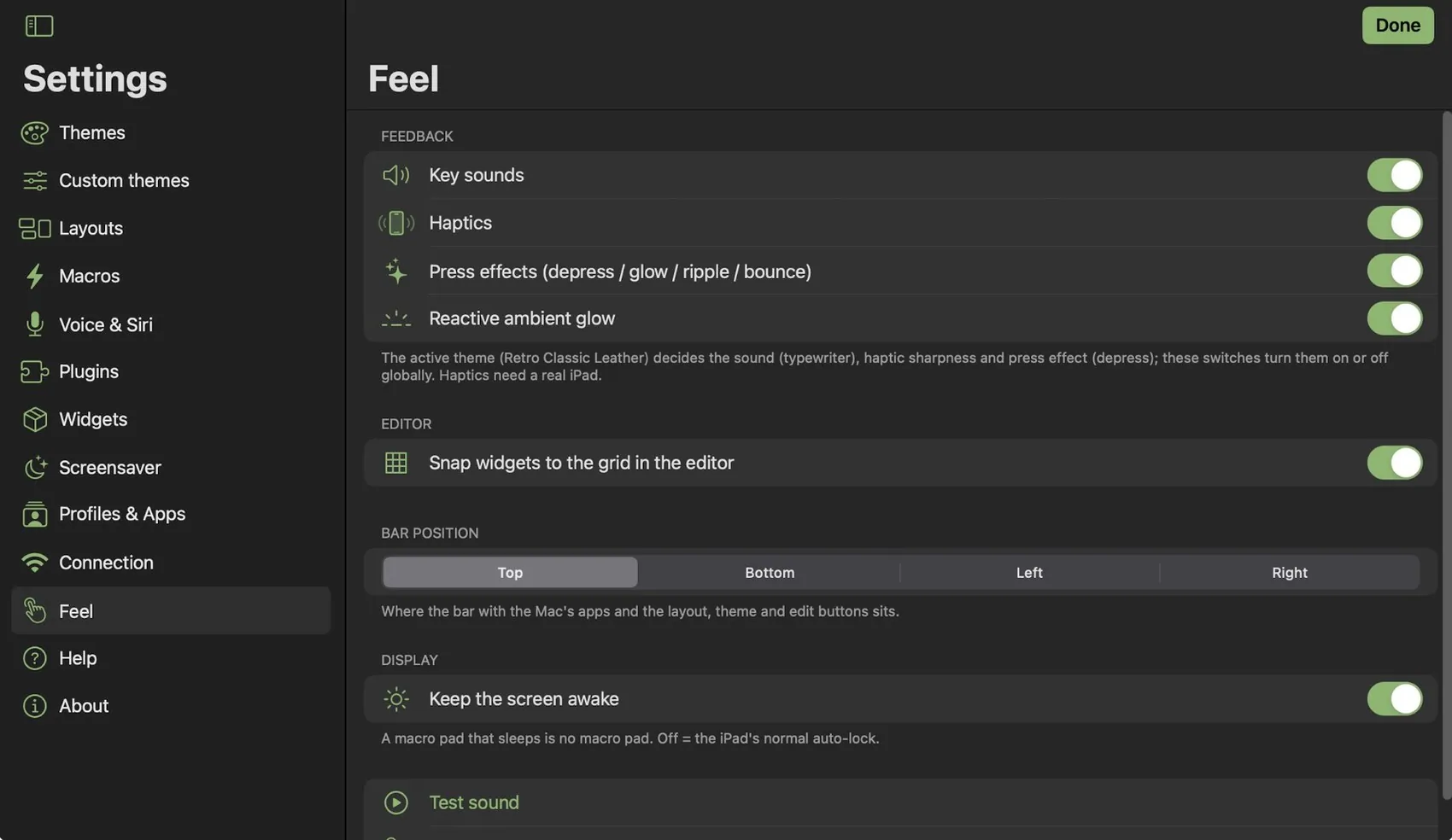
Settings ▸ Feel ▸ Bar position moves the bar to the bottom, left or right.
06Which app the keys go to
| Mode | What happens | Use it for |
|---|---|---|
| Following | The pad changes layout whenever a different app comes to the front on the Mac. Keys go to that app. | Everyday work across many apps |
| Not following | The pad keeps the layout you picked. Keys go to whatever is in front. Double-tap empty pad space, or tap the button, to follow again. | Keeping one deck while you switch apps |
| Target an app | The pad keeps the layout and every key is delivered to one chosen app: the Mac brings it forward, performs the key, done. Touch and hold an app in the dock and choose Show its keys only; the button then reads Keys only. | Driving OBS or Teams while you work in something else |
Claude Code and other AI tools that run inside a terminal are recognised in the terminal’s front tab, so the pad shows their own layout while they run.
07Choose a layout
Tap the layout button in the bar. The picker shows every layout as a live miniature in your current theme, with a search field and role filters: Everyday, Meetings & chat, Drawing & design, Video editing, Streaming & YouTube, 3D, Music, Developer, Office & notes, AI and Control surfaces.
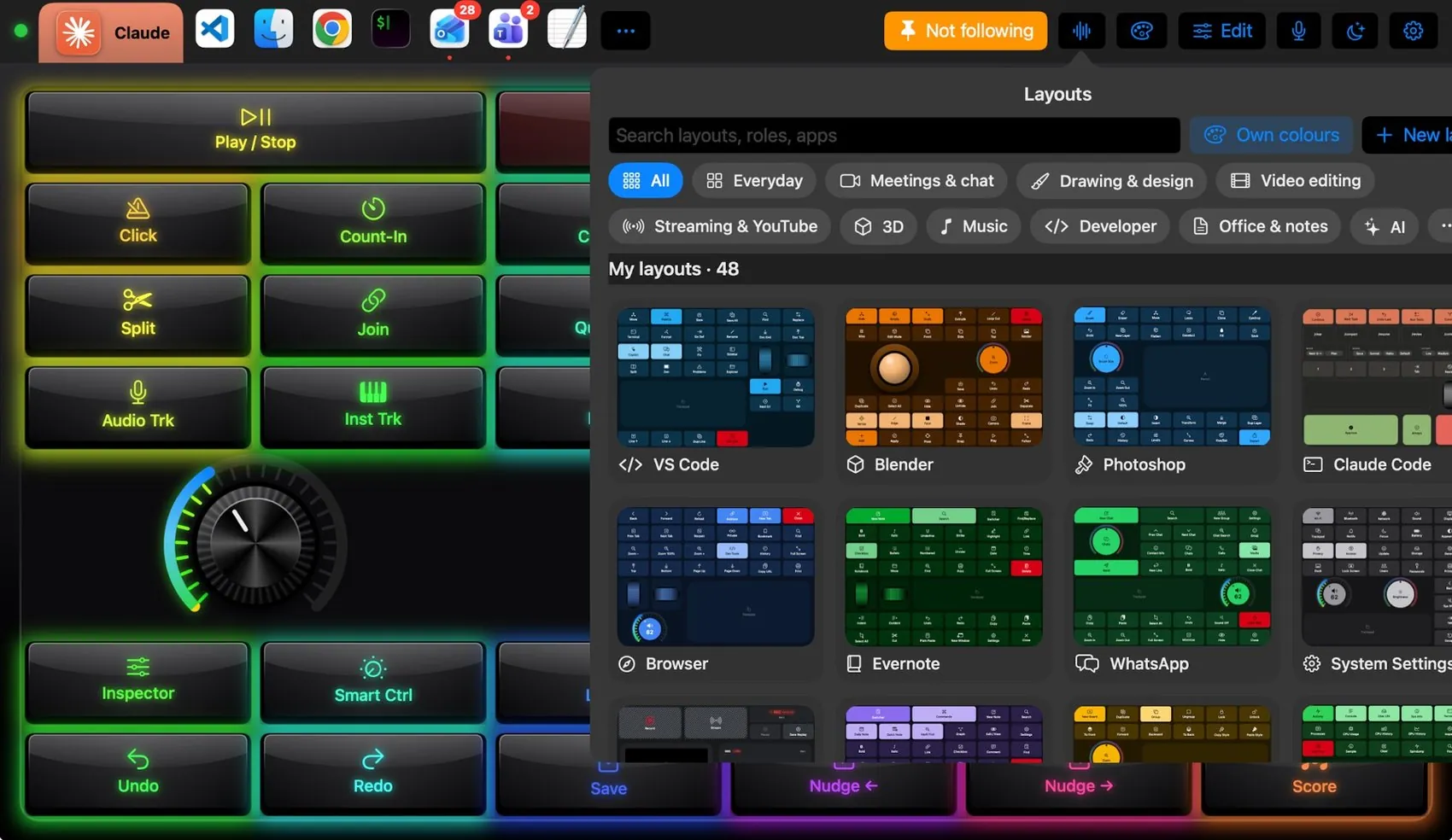
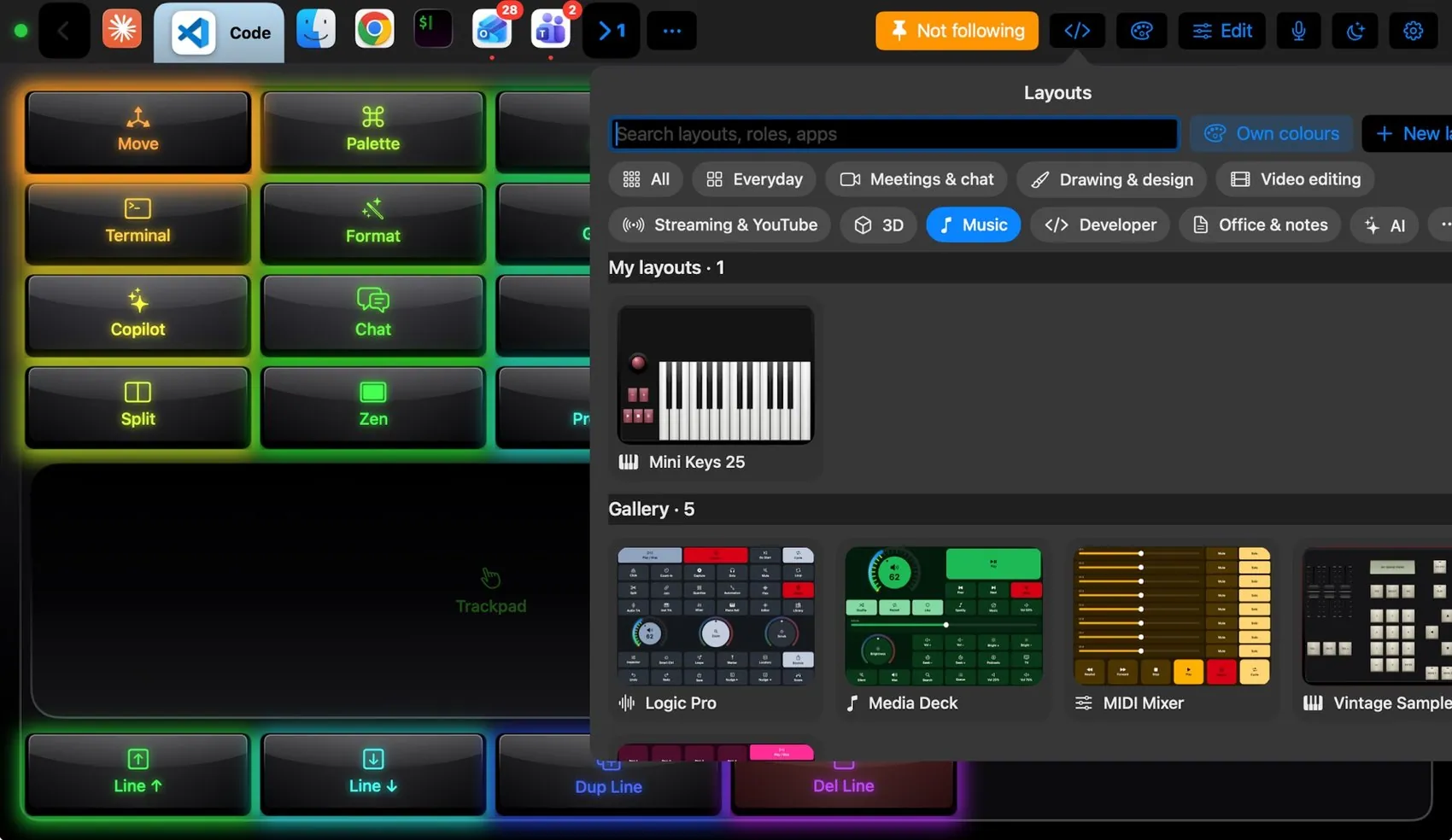
Settings ▸ Layouts
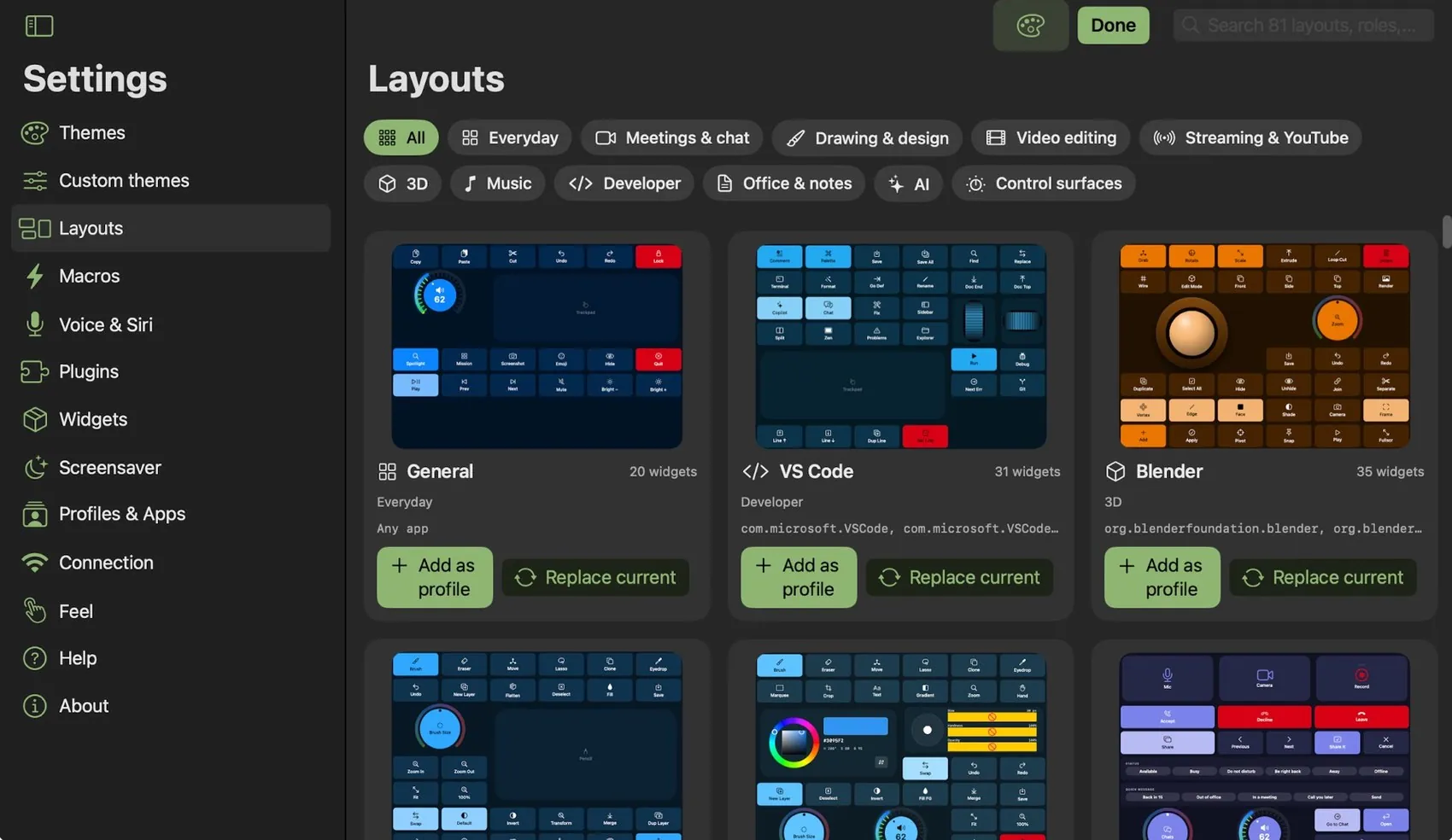
The same 81 layouts with more detail: what they are for, how many controls, which apps they follow. Add as profile adds a copy to your own; Replace current swaps the widgets of the profile you are on.
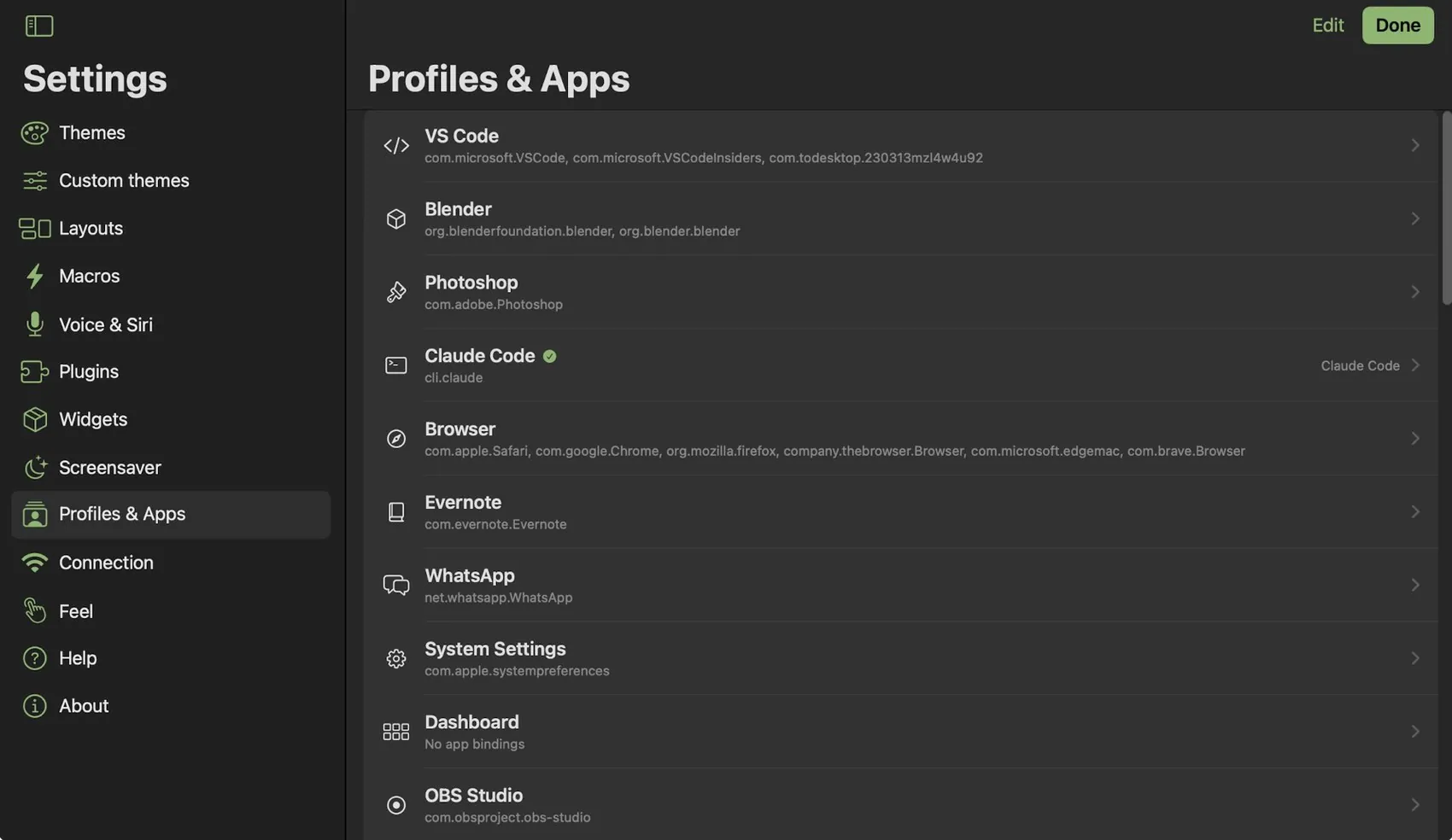
Profiles & Apps
A profile is a layout bound to one or more Mac apps. Settings ▸ Profiles & Apps lists them with their bundle IDs. Tap one to add or remove apps (pick from the Mac’s running apps or type a bundle ID), give it an icon, pin a theme to it, duplicate, export or import it. Edit reorders and deletes. Turn on Add layouts for new apps automatically and the first time an app without a profile comes to the front, its layout is added and shown.
08Edit a layout
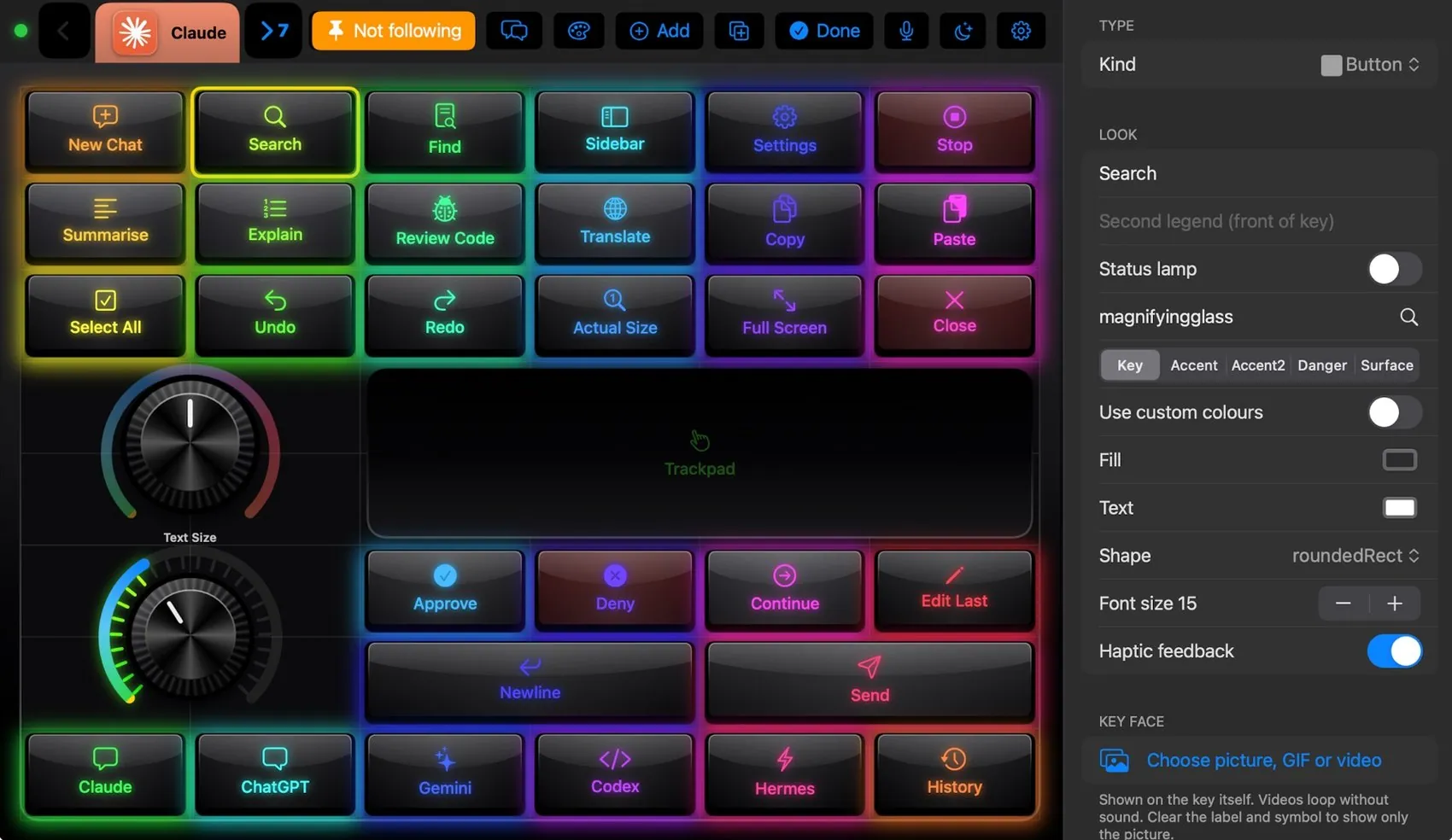
- Tap Edit in the bar. Add and Duplicate appear, Edit becomes Done, and every control shows its outline.
- Move: drag a control to another place. It snaps to the grid (Settings ▸ Feel ▸ Snap widgets to the grid).
- Resize: pinch it. With snapping on, the new size snaps to the grid too.
- Change it: tap a control and its inspector opens on the right: kind, colour, label, icon, action, and Use custom colours to step out of the theme.
- Add: Add lists every kind of control, ready-made components from other layouts, macros and info panels.
- Delete: select it and choose Delete widget in the inspector.
- Done saves. The same editor runs on the Mac (menu bar icon ▸ Open Editor); layouts are shared through the Mac, the newest edit wins.
What a key can do
| Action | Example |
|---|---|
| Key shortcut | ⇧⌘P in VS Code, B in Final Cut Pro |
| Menu item | View ▸ Editor Layout ▸ Split Right, pressed by name, no shortcut needed. Pick from the Mac’s menus lists the menus of the app in front. |
| Open or switch app | Safari, Claude, Spotify |
| Type text | “I’ll be back in 15 minutes.” |
| Media and volume | Play / Pause, Next, Mute, brightness, set volume 40% |
| Macro | Meeting Ready, Code Mode |
| Shortcut | Any of your Shortcuts, by name |
| App command | OBS: start recording; Photoshop: select the Lasso; Teams: raise hand |
Pictures on keys
In the inspector, Key face puts a photo, a GIF or a looping video on any key.
09Widgets
Every control on a layout is a widget. The built-in kinds:
| Button / Toggle | Tap fires an action; a toggle lights while the state is on, from the Mac when the app reports it. |
| Knob | Turn with haptic detents; one action each way. |
| Volume knob | The Mac’s output volume, both ways, LED ring; tap to mute. |
| Slider / fader | Any continuous value. |
| Scroll wheel | Vertical or horizontal roller. |
| Trackpad | Pointer, two-finger scroll, tap to click. |
| Trackball | Orbit with momentum. |
| Pencil area | Apple Pencil pressure as tablet pressure on the Mac. |
| Chip group | A row of choices (Teams status). |
| Label, info panel | Text, clocks, Mac stats. |
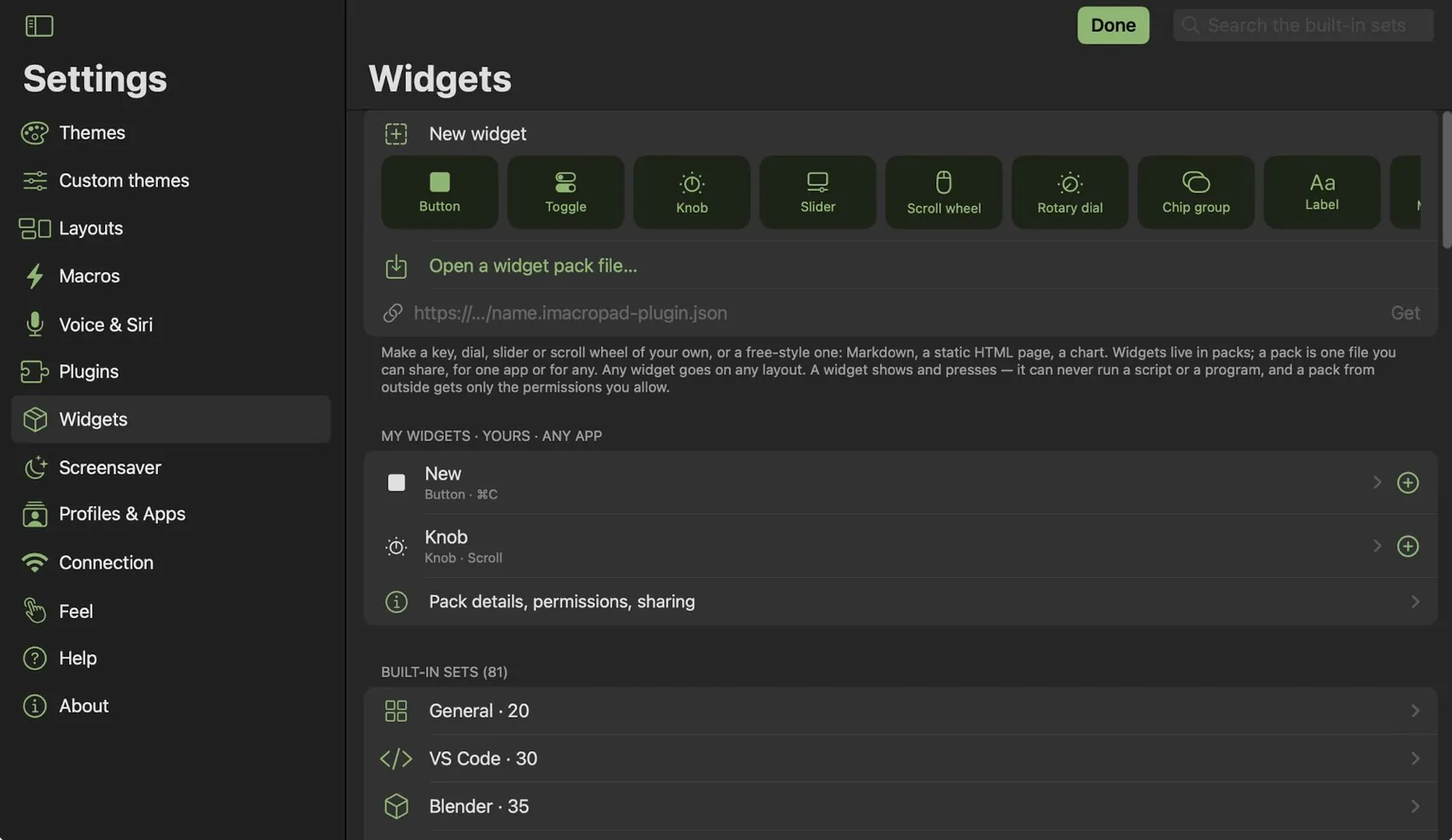
Settings ▸ Widgets makes your own: choose Button, Toggle, Knob, Slider, Scroll wheel, Rotary dial, Chip group or Label, or a free-style widget (Markdown, a static HTML page, a chart). Widgets live in packs; a pack is one file you can share, for one app or for any. Open a widget pack file… or paste a link to add one. A widget shows and presses, it can never run a script or a program, and a pack from outside gets only the permissions you allow.
10Themes
A layout says what the keys do; a theme says how they look, sound and feel. Any of the 104 themes goes on any layout. Tap the palette in the bar, or Settings ▸ Themes: every card is a live miniature of your current layout in that theme. Search matches names, families and keycap styles (“glass”, “typewriter”, “leather”).
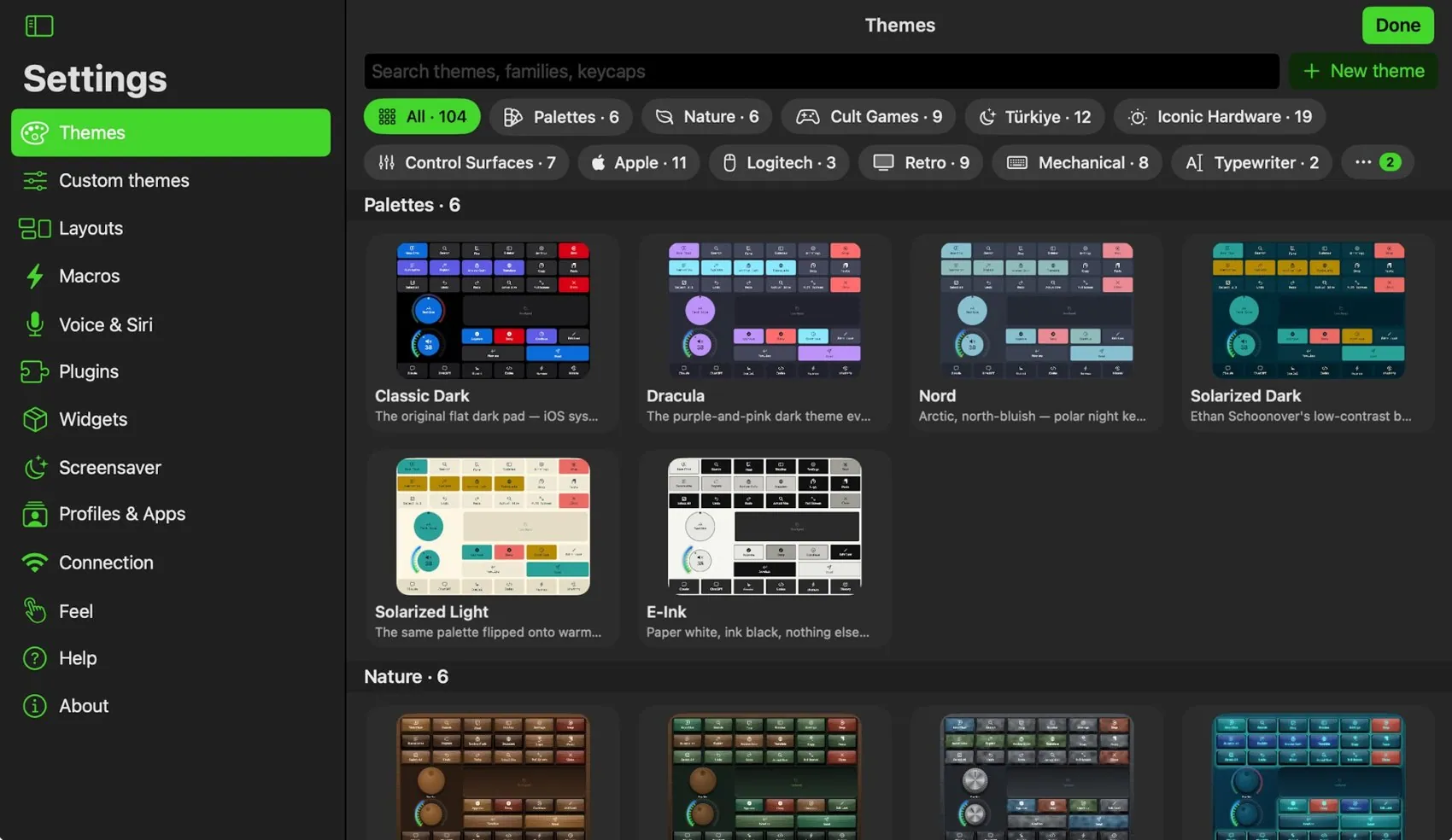
A theme is more than colours: keycap shape and depth, legend font, press effect (depress, glow, ripple, bounce), click sound, haptic sharpness, an LED ring on knobs, a case around the plate and a background. Some layouts have a theme of their own (Claude Code wears Claude Code); the notice at the top says so and Use the common theme switches back.
Your own theme
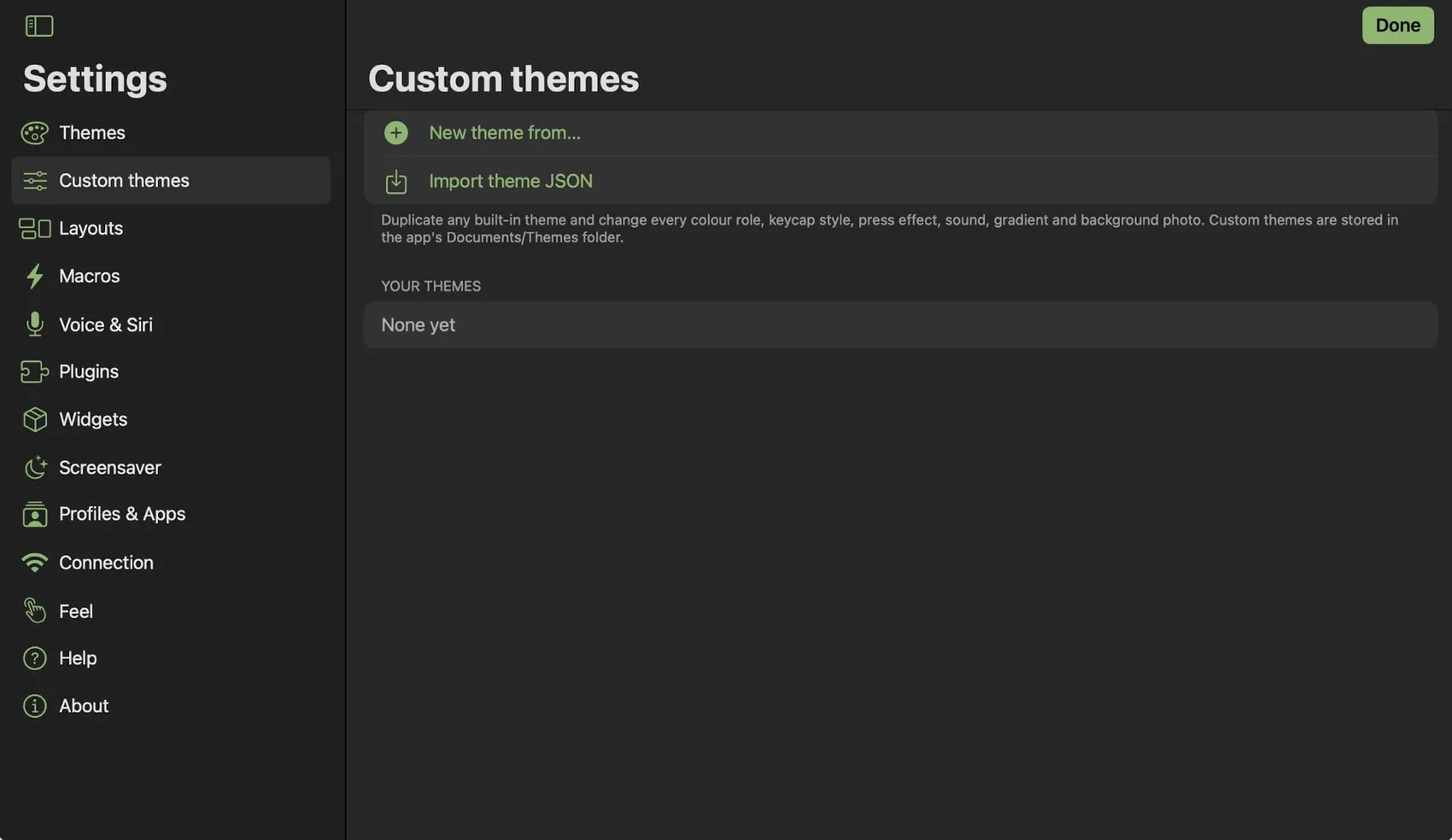
Settings ▸ Custom themes ▸ New theme from… copies any theme into an editor with a live preview: every colour role, keycap style, font, corner radius, border, gap, press effect, sound, haptic sharpness, LED ring, gradient and a background photo. Import theme JSON adds one someone shared.
11Feel
Settings ▸ Feel switches key sounds, haptics, press effects and the reactive ambient glow on or off for every theme, snaps widgets to the grid in the editor, moves the bar, and keeps the screen awake (a macro pad that sleeps is no macro pad).
12Macros
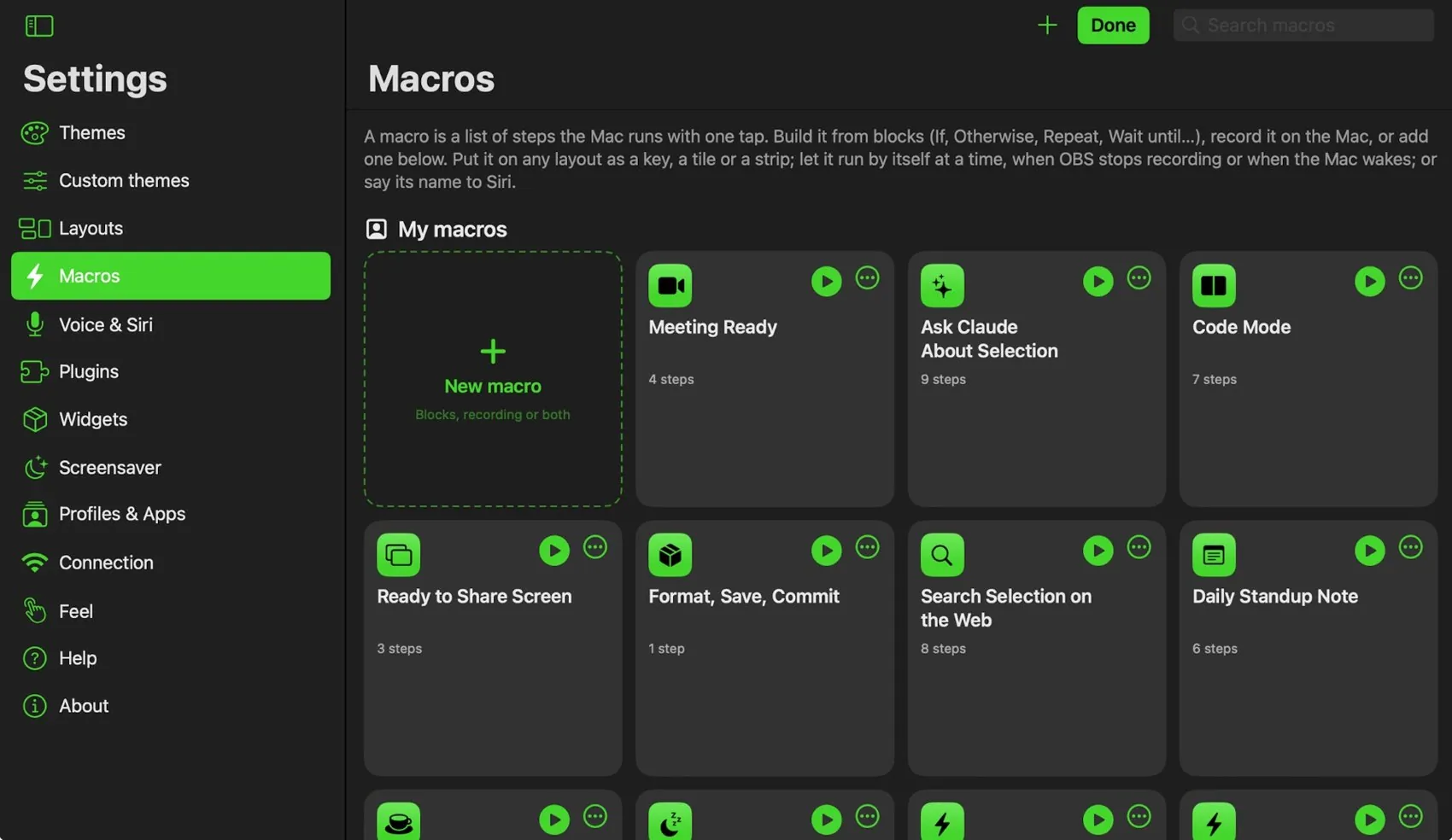
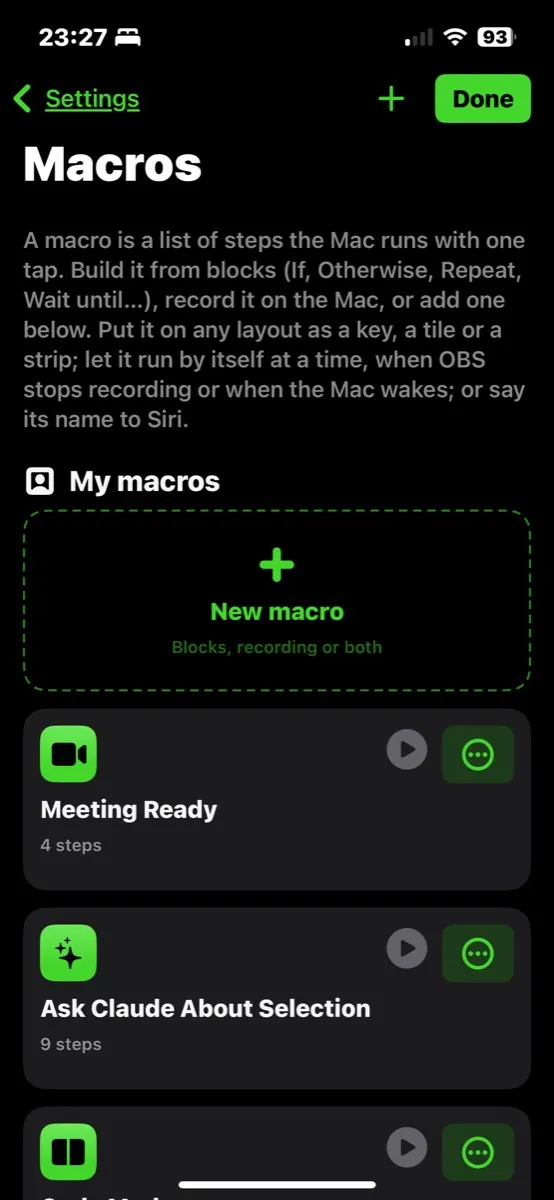
A macro is a list of steps the Mac runs with one tap. Settings ▸ Macros holds your macros, a gallery of ready ones and app packs (Logi Tune, Logi Options+). Each card has a play button and a menu: edit, duplicate, share as a plugin, or Put on a layout… as a key, a wide key, a big tile or a strip.
Build one
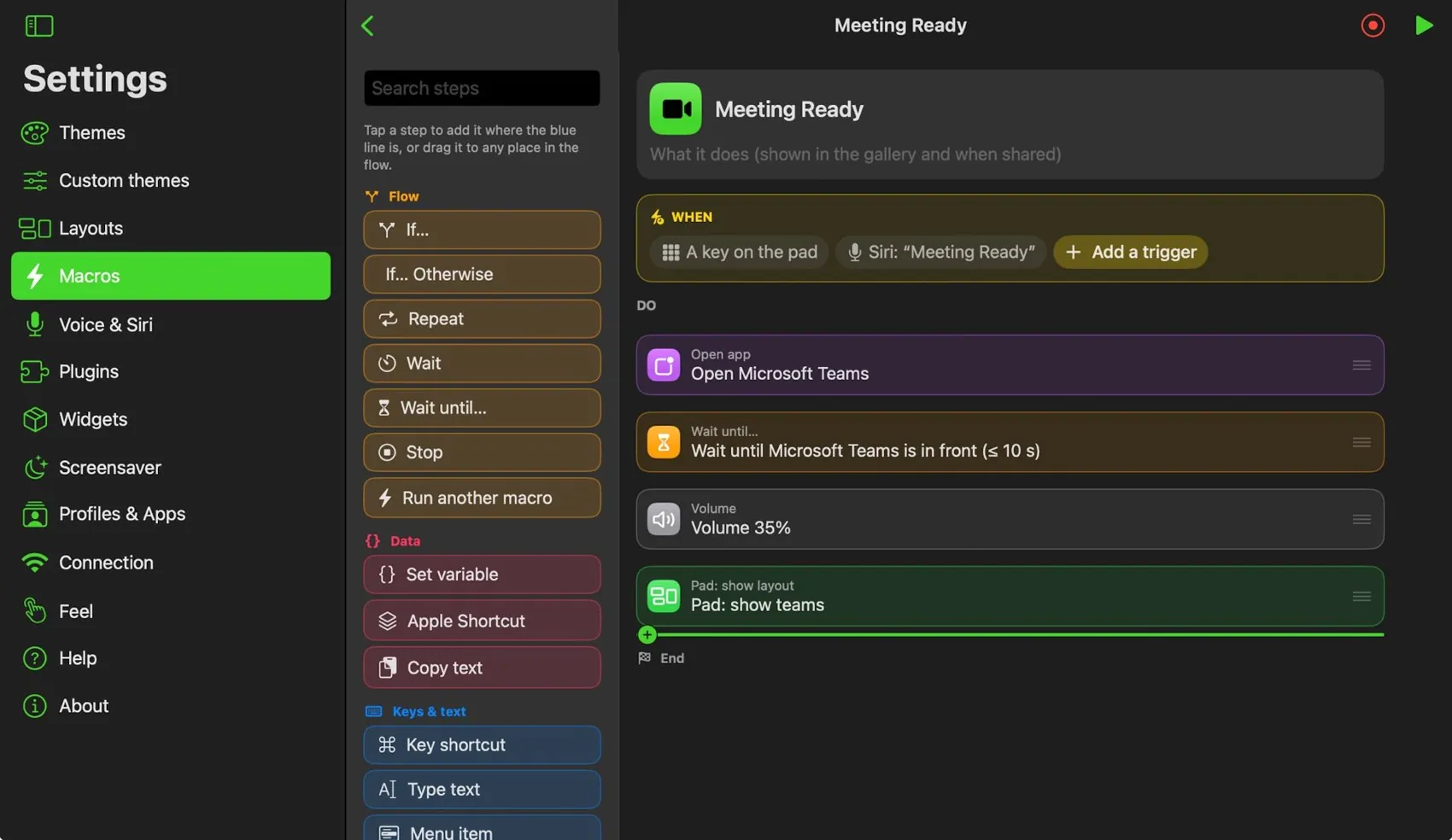
- New macro, then give it a name and an icon.
- When: add triggers. A key on the pad, a Mac hotkey (⌃⌥⌘M), a typed abbreviation (;mtg), a time on chosen days or every few minutes, an app opening or coming to the front, OBS (recording started, stopped, scene changed, replay saved), the Mac waking, unlocking, locking or going dark, Siri and Shortcuts.
- Steps: drag them from the palette into the flow, or tap one to add it at the blue line. Keys, menu items, open and quit apps, type text, click a named button, click words on screen, wait, wait until an app or button is there, set the volume, run a Shortcut, change the pad’s layout, OBS and Teams commands, run another macro.
- Blocks: nest steps in If / Otherwise if / Otherwise and Repeat. Conditions are apps (in front, running), buttons on screen, words on screen, time of day, days, and text or variable tests, joined with all, any or unless. Stop ends early.
- Variables: {{clipboard}}, {{date}}, {{app}}, {{window}}, {{result}} (the answer of a Shortcut), {{file}} (an OBS recording) go into any text.
- Record instead: press Record, do it once on the Mac, and the clicks and keys come back as steps you can edit. A click is kept as which button, not where it was.
13Voice & Siri
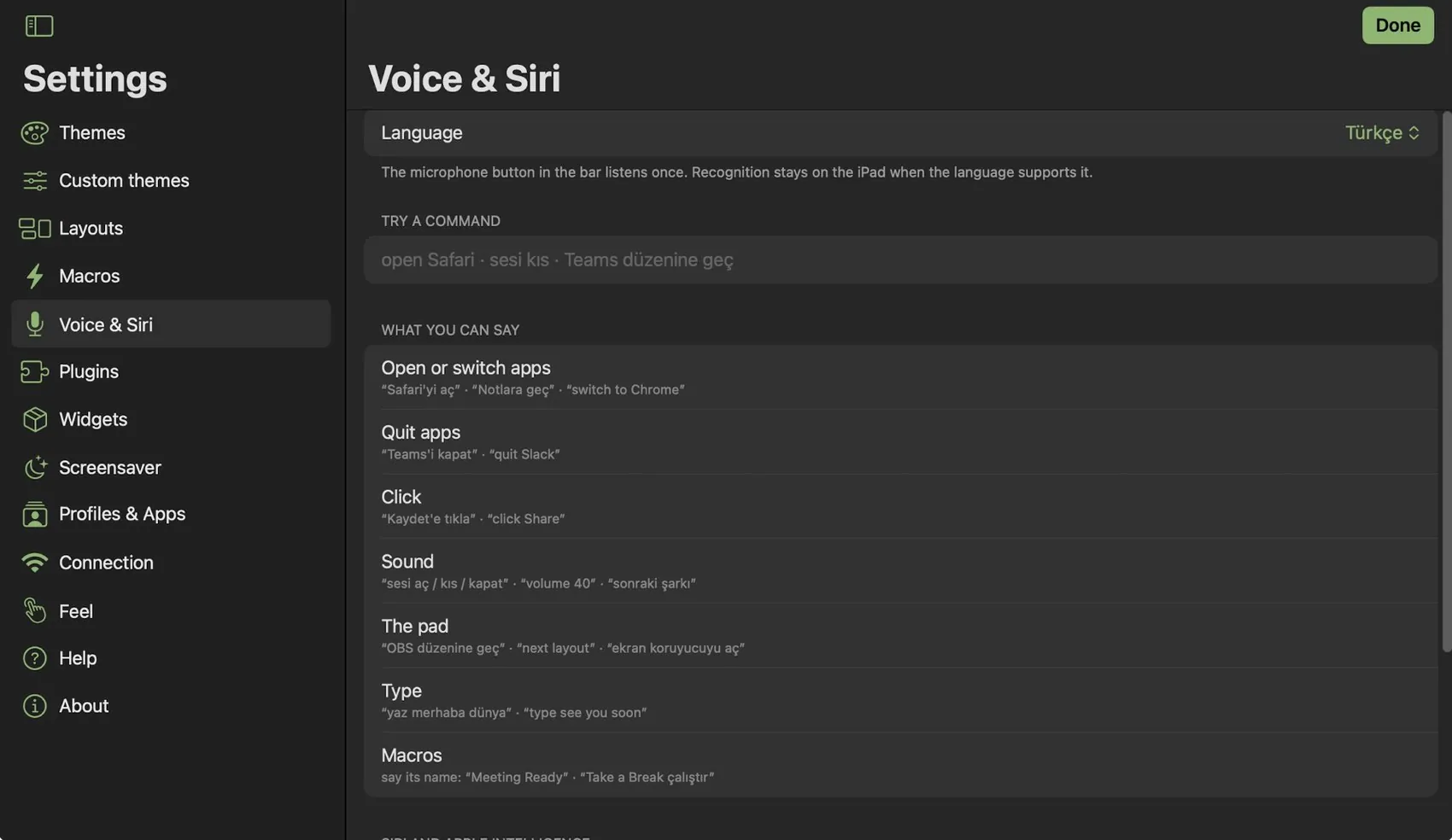
The microphone in the bar listens once. Recognition stays on the iPad when the language supports it. Settings ▸ Voice & Siri picks the language (Türkçe, English US or English UK), lets you try a command, and lists what you can say:
| Say | Examples |
|---|---|
| Open or switch apps | “Safari'yi aç” · “Notlara geç” · “switch to Chrome” |
| Quit apps | “Teams'i kapat” · “quit Slack” |
| Click | “Kaydet'e tıkla” · “click Share” |
| Sound | “sesi aç / kıs / kapat” · “volume 40” · “sonraki şarkı” |
| The pad | “OBS düzenine geç” · “next layout” · “ekran koruyucuyu aç” |
| Type | “yaz merhaba dünya” · “type see you soon” |
| Macros | say its name: “Meeting Ready” · “Take a Break çalıştır” |
Every macro is also a Siri phrase (“Run Meeting Ready in iMacroPad”) and an action in the Shortcuts app: Run Macro, Do a Command, Show Layout, Screensaver, Mac Volume, Set Mac Volume.
14Plugins
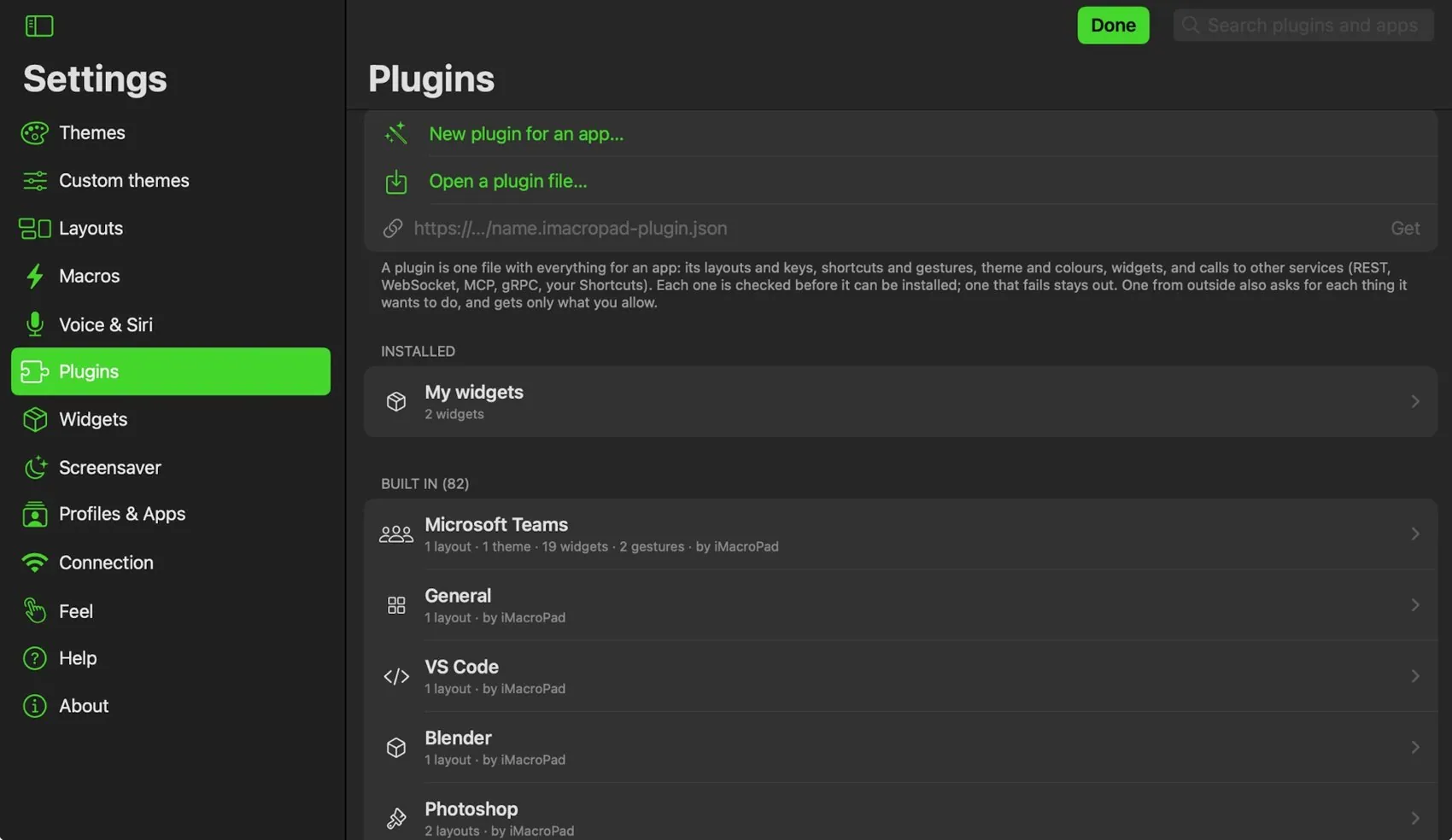
A plugin is everything iMacroPad knows about one app, in one file: its layouts and keys, shortcuts and gestures, theme and colours, ready-made components, macros, and calls to other services (REST, WebSocket, MCP, gRPC, your Shortcuts). The built-in ones cover the gallery’s apps; Settings ▸ Plugins installs, copies, edits and shares them, and makes a new one from an app’s own menu commands.
Installing one from outside
- Open the .imacropad-plugin.json file, or paste its link and tap Get.
- It is checked before anything else happens: no code, no scripts, static HTML only, and text that tries to do harm is refused.
- A review sheet lists each thing it asks for, with the author’s reason and a switch, all off. What you leave off is taken out of the installed copy.
- The Mac checks it again and tests it against the real app. Look at its permissions again on the plugin’s page reopens the review.
| Permission | Covers |
|---|---|
| keys | Shortcuts, menu items, media and volume keys, scrolling, MIDI, opening its app |
| typeText | Typing text the plugin brings |
| openLinks | Opening web and app links |
| shortcuts | Running your Shortcuts by name |
| network | Calling the servers its integrations name |
| clipboard | Sending your clipboard to those servers |
| typeAnswers / saveFiles | Typing a server’s answer, saving it to Downloads/iMacroPad |
| triggers | Reacting to gestures and MIDI keys on the Mac |
| html / liveData | Its own static HTML; widgets that show what an integration answers |
15Screensaver
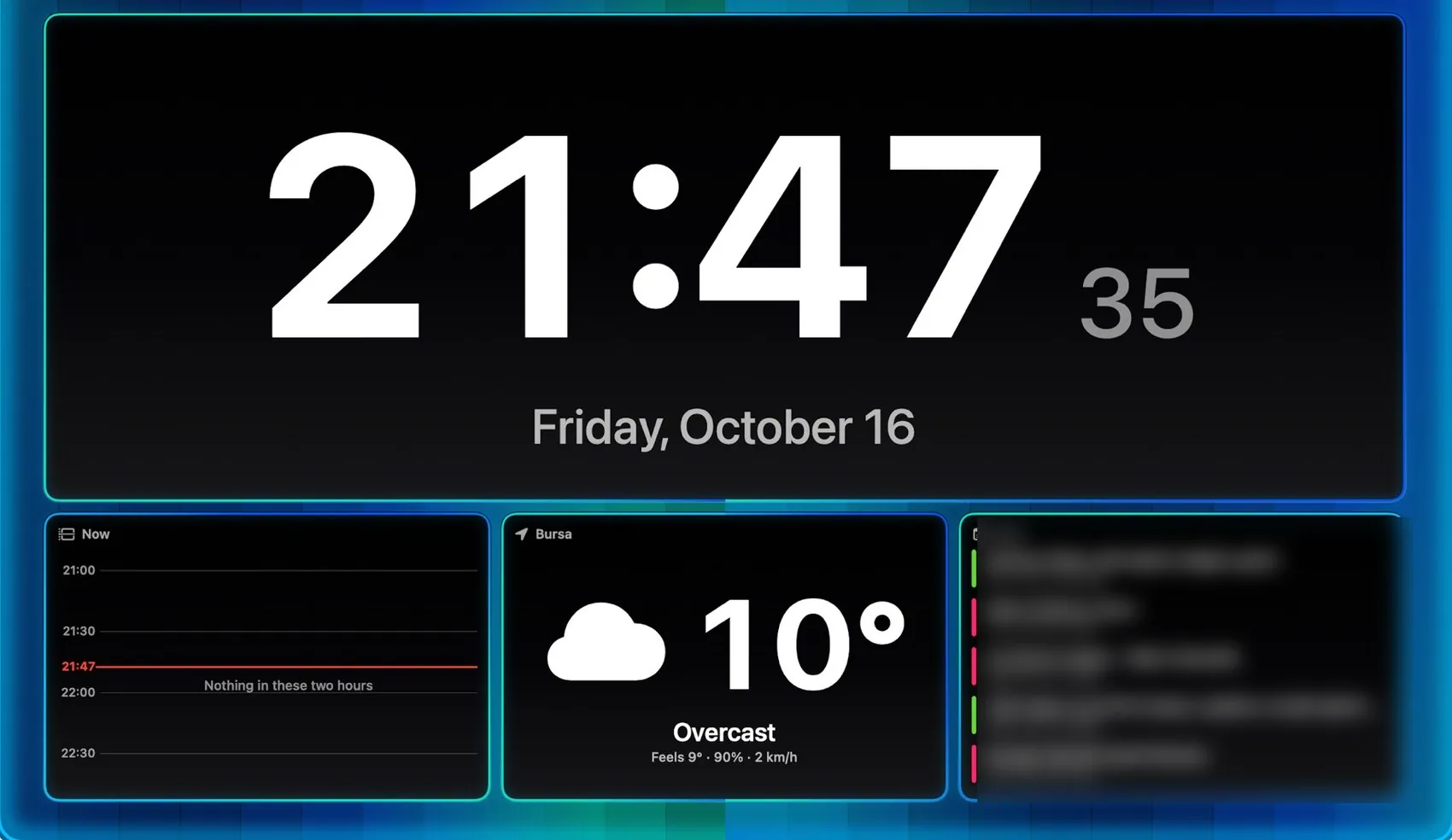
When the pad rests it shows information instead of keys. The moon in the bar starts it; a tap anywhere brings the keys back. While it runs, two fingers up or down set the brightness, left and right change the scene, and three-finger swipes can run a macro.
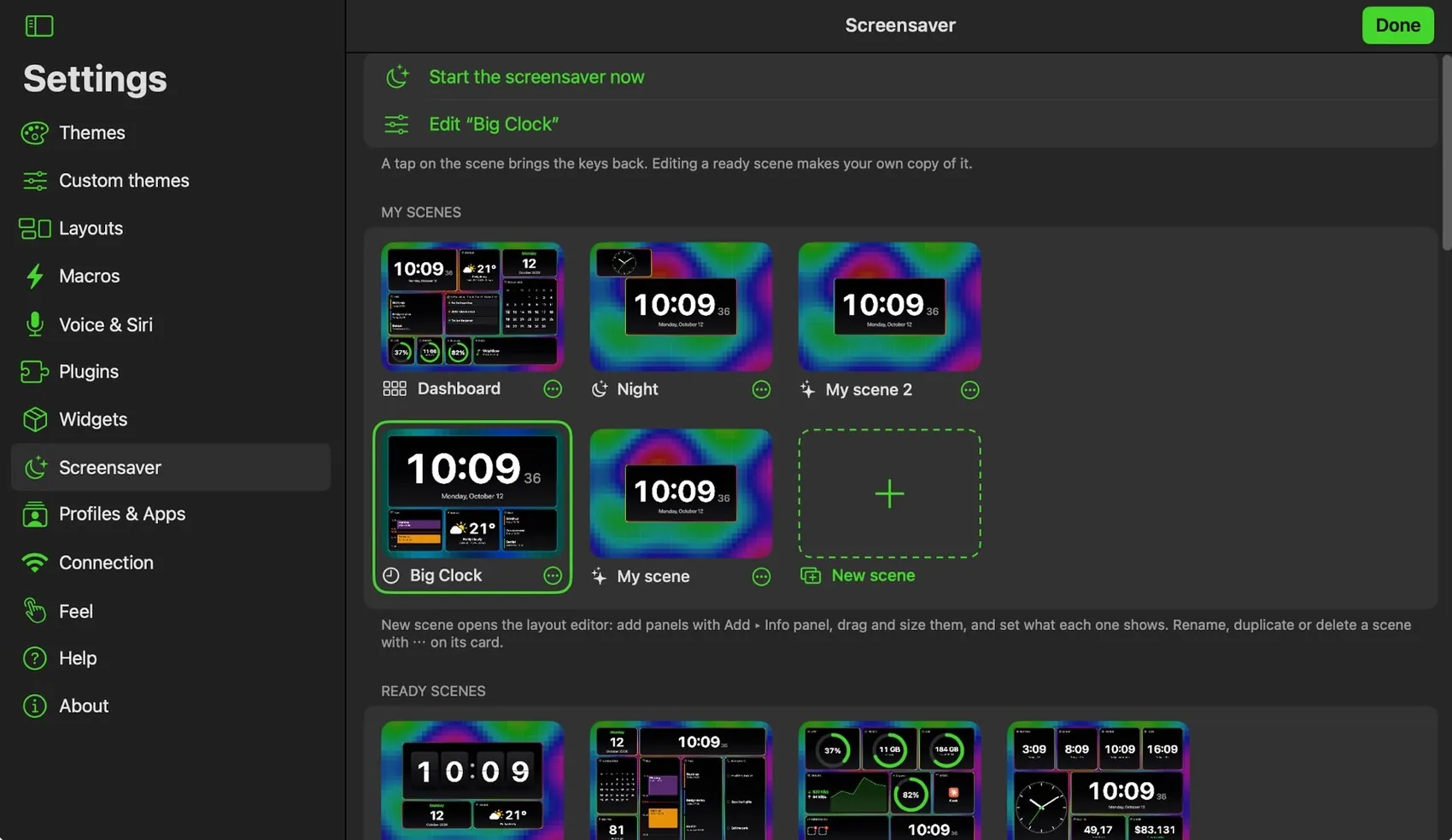
Settings ▸ Screensaver
- Scenes. Your own scenes and ten ready ones: Big Clock, Flip Clock, Dashboard, Weather Station, Agenda, Developer Desk, Mac Monitor, Night, Photo Frame, World Clocks. New scene opens the layout editor; Add ▸ Info panel adds panels.
- Look. Background (RGB wave, aurora, plasma, breathing, starfield, particles, matrix rain, colour drift, bokeh, fireflies, snow, rain, ripples, or off), colours (the theme’s, rainbow, a palette, or your own), a light strip round the screen, a glow round each panel, speed and strength.
- Start by itself after some minutes without a touch (optionally only when the Mac is idle too), and/or in set hours, with optional dimming. Never while you edit or Settings is open.
- Weather city, Calendar access and which calendars count (iCloud, Google, Outlook / Exchange), Photo frame pictures.
35 panels: digital, analog, flip and world clocks, date, month calendar, day/week/month/year progress, countdown, timer, stopwatch, note, battery; weather now, next hours, forecast, air quality, sun, moon; next events, now timeline, reminders, photo frame; AI sessions; the Mac’s CPU, memory, disk, network, battery, now playing, app badges, front app, command output; a currency pair and a coin. A panel that cannot show its data says why.
16OBS Studio
- In OBS: Tools ▸ WebSocket Server Settings ▸ turn on Enable WebSocket server (port 4455). Keep OBS on the same Mac as iMacroPad for Mac.
- Nothing to copy: the Mac reads the port and the password from OBS’s own settings, and picks up a change by itself.
- Open OBS. Within a couple of seconds the OBS layout shows READY, your scenes and the mixer; Settings ▸ Connection says OBS connected · N scenes.
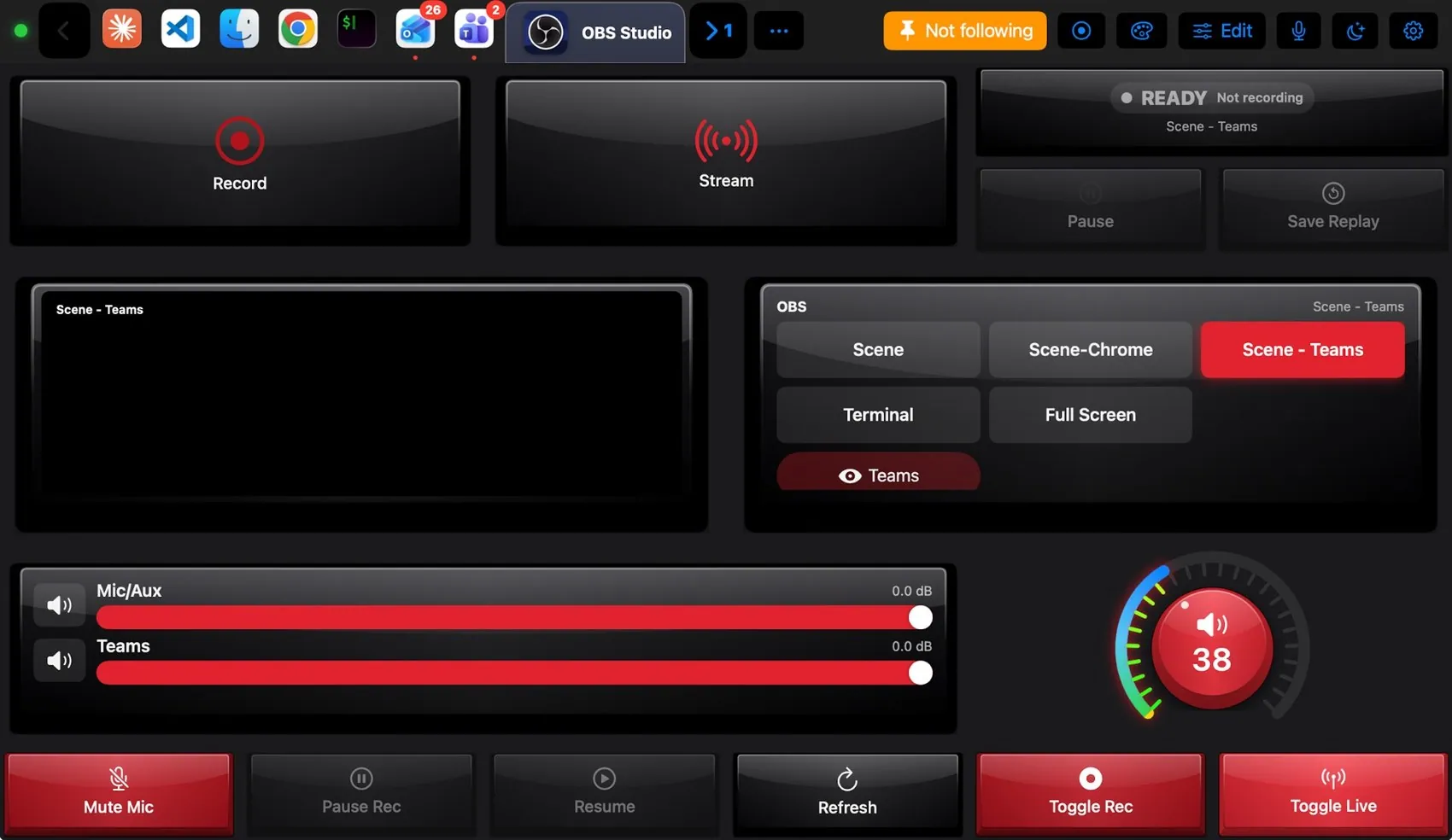
The Preview shows the scene that is on air; an empty scene shows black. When OBS quits, the pad says OBS not connected instead of guessing.
17Photoshop and Teams
Photoshop needs nothing but the Automation prompt the first time: the Mac talks to Photoshop directly to pick tools, set the colour and the brush and read them back. Each command takes about a second. The Photoshop page shows every key.
Microsoft Teams keys use Teams’ own shortcuts, posted inside Teams. Record, transcript and captions have no shortcut, so the Mac opens the meeting’s More menu and clicks them; this needs the Automation prompt and a meeting window. The Teams page.
18On an iPhone
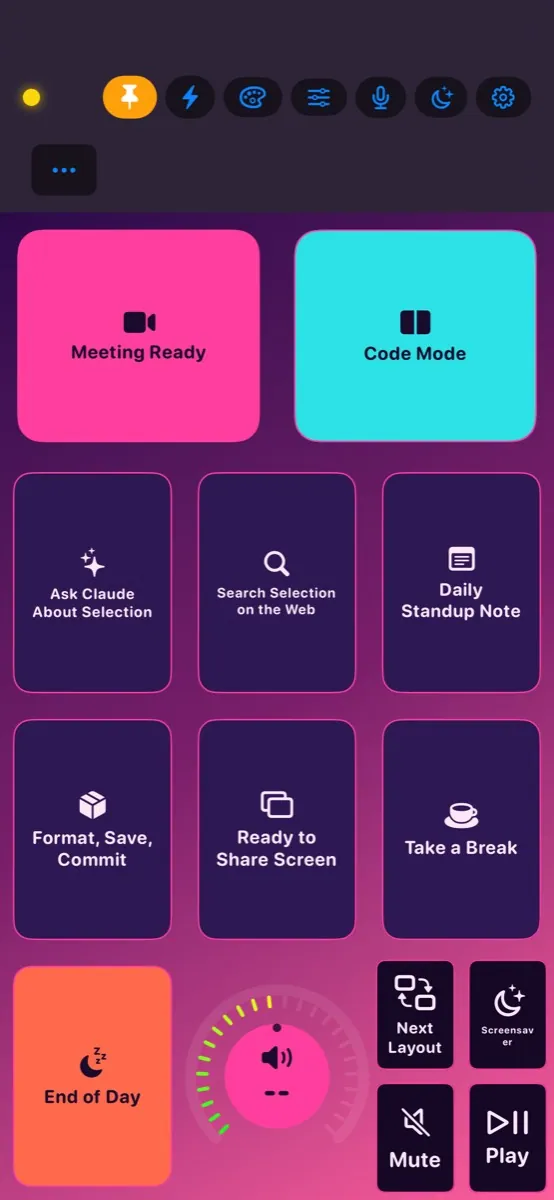
Everything above works on an iPhone. Layouts scale to the screen; held upright the bar is two rows, its buttons and then the Mac’s apps; turned sideways it is one row as on the iPad.
19Troubleshooting
The dot stays orange: the pad cannot find the Mac
- Both devices on the same network (guest Wi‑Fi often keeps devices apart).
- iMacroPad for Mac is running (its icon is in the menu bar).
- On the iPad: Settings ▸ Privacy & Security ▸ Local Network ▸ iMacroPad is on.
- Settings ▸ Connection ▸ Reconnect, or on the Mac: menu bar icon ▸ Reconnect Devices.
Keys show a red notice and nothing happens
macOS is dropping them: System Settings ▸ Privacy & Security ▸ Accessibility ▸ switch iMacroPadD off and on again. While it is off, the menu bar icon shows Allow Keyboard Control…; its Setup Guide… walks through every permission.
“Unauthorized — check PIN”
The PIN on the pad differs from the Mac’s. Type it again under Settings ▸ Connection ▸ Pairing and tap Save PIN & reconnect. To change the Mac’s PIN: menu bar icon ▸ PIN: on — Change…
Keys land in the wrong app
Look at the follow button: Not following sends keys to whatever is in front; a target app sends them to that app. Tap it to follow the Mac again.
A shortcut types the wrong character
On non-US keyboard layouts symbol shortcuts are pressed through the app’s menu. If an app has no such menu item, set the key’s action to Menu item and pick it from the Mac’s menus.
OBS keys do nothing
In OBS, turn on Enable WebSocket server (see OBS Studio above). OBS must run on the same Mac as iMacroPad for Mac. Settings ▸ Connection ▸ OBS must say connected.
The screensaver shows “no permission” on a panel
Settings ▸ Screensaver ▸ Calendar: allow events and reminders and choose which calendars count. Weather needs a city.
20Licence and devices
What one purchase covers, and how to pay, is on the Buy page. There is no account and nothing to sign in to. Buy · Support