One iPad, every app: why a flexible macro pad wins
Most macro pads are built for one kind of work. Real days are not. You cut a video in the morning, sit in a meeting, fix a spreadsheet, answer an AI agent, and finish with a mix. Here is what it looks like when the macro pad changes with every one of those apps.
By the iMacroPad team · · 6 min read
The idea: the pad follows the Mac
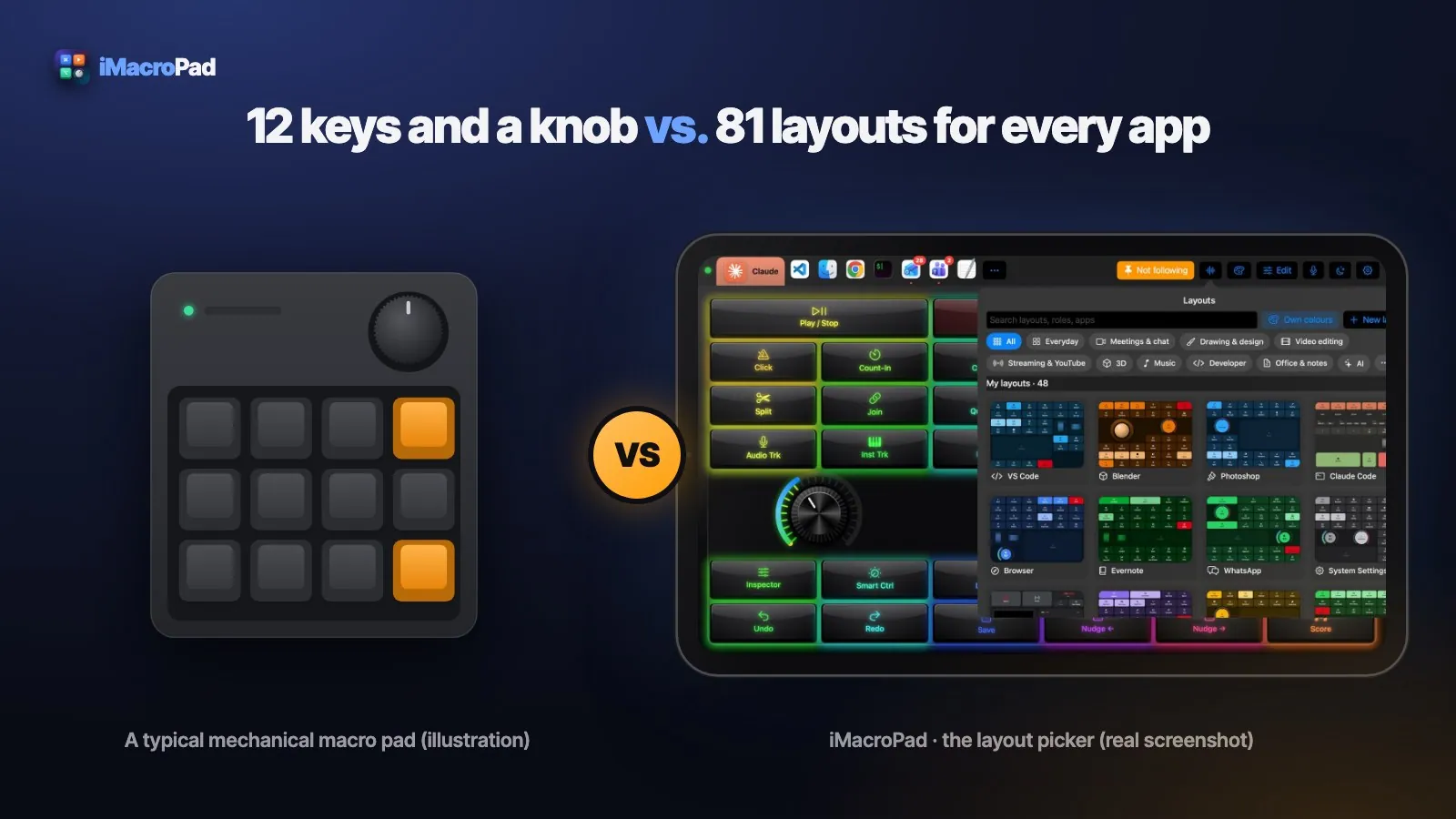
iMacroPad turns an iPad or iPhone into a macro pad for the Mac. A small, free companion app on the Mac tells the pad which app is in front. In Follow Mac mode the pad shows that app’s layout: bring Final Cut Pro forward and you get editing keys and jog knobs, switch to Teams and you get a big Mic key.
There are 81 ready layouts, by app and by role, each with its own theme. Every key was checked against the app’s own menus. And because each control is software, you can change any of it: move, resize, add or remove keys, knobs, faders, a trackpad or a trackball.
A day on one pad
Final Cut Pro: cut by hand
The Final Cut Pro layout puts the editor’s own shortcuts under your fingers: tools, edit types, marks and markers, trims and retimes, J K L transport, and two knobs for jog and shuttle. Jog steps one frame per detent; shuttle moves ten.
Photoshop: the pad talks back
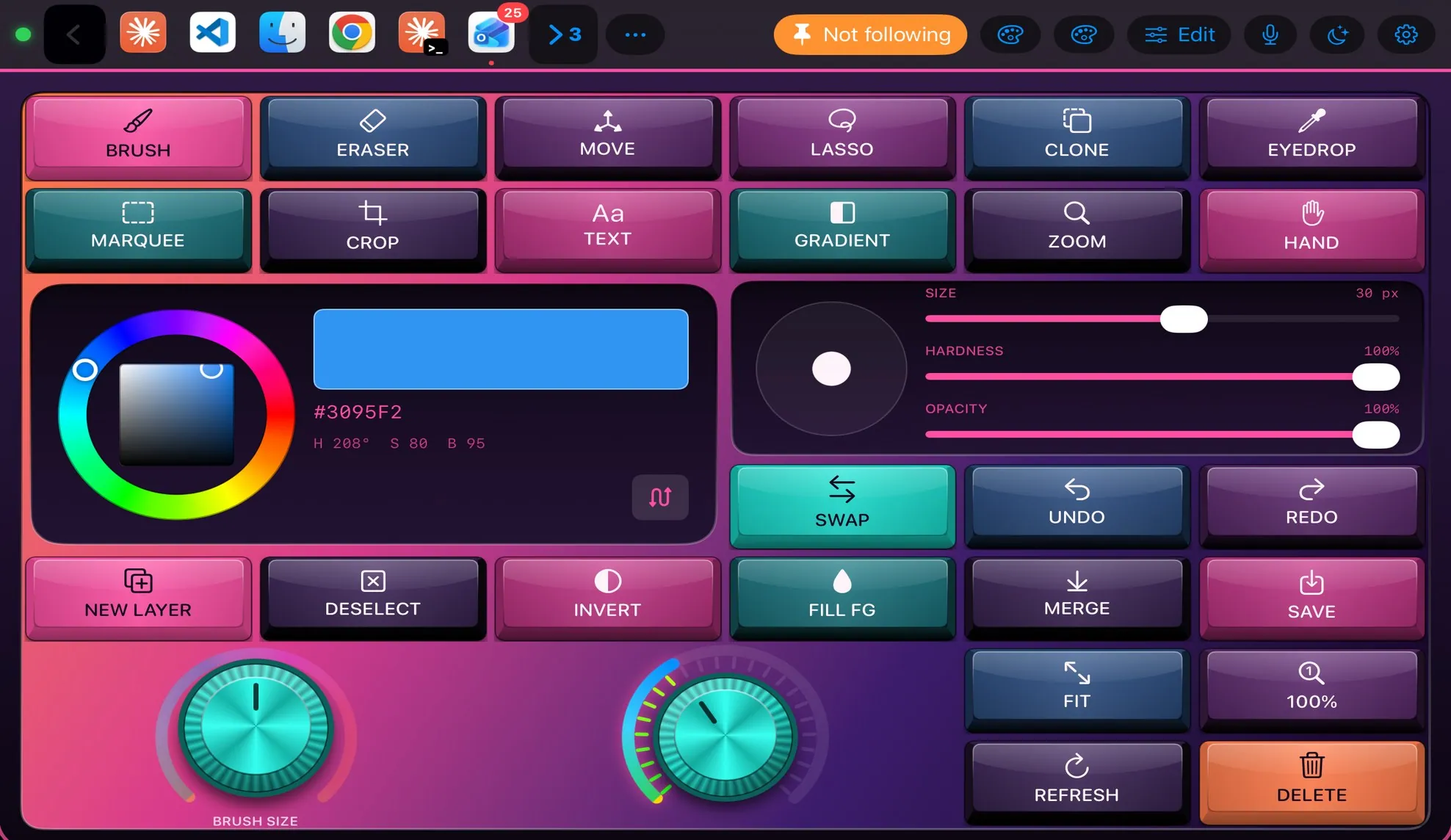
Tool keys pick Photoshop’s tools by name, not by a shortcut that can change. Drag the hue ring of the color wheel and the foreground color changes; move Size, Hardness or Opacity and the current brush follows. The pad reads Photoshop’s state back, so the color on the pad is the color in the app.
OBS Studio: scenes that know they are live
Record and Stream show what OBS is really doing, a status strip says READY, REC or LIVE, the preview shows the scene on air, and the mixer has a fader for each audio input. Tap a scene to switch to it.
Microsoft Teams: no more hunting for mute
Big Mic, Camera and Record keys; Accept, Decline and Leave; share controls; a status strip; quick messages typed into the open chat; and a knob that walks your recent chats. Point the pad at Teams and its keys work even while you are in another app.
Excel: a numpad that also knows Excel
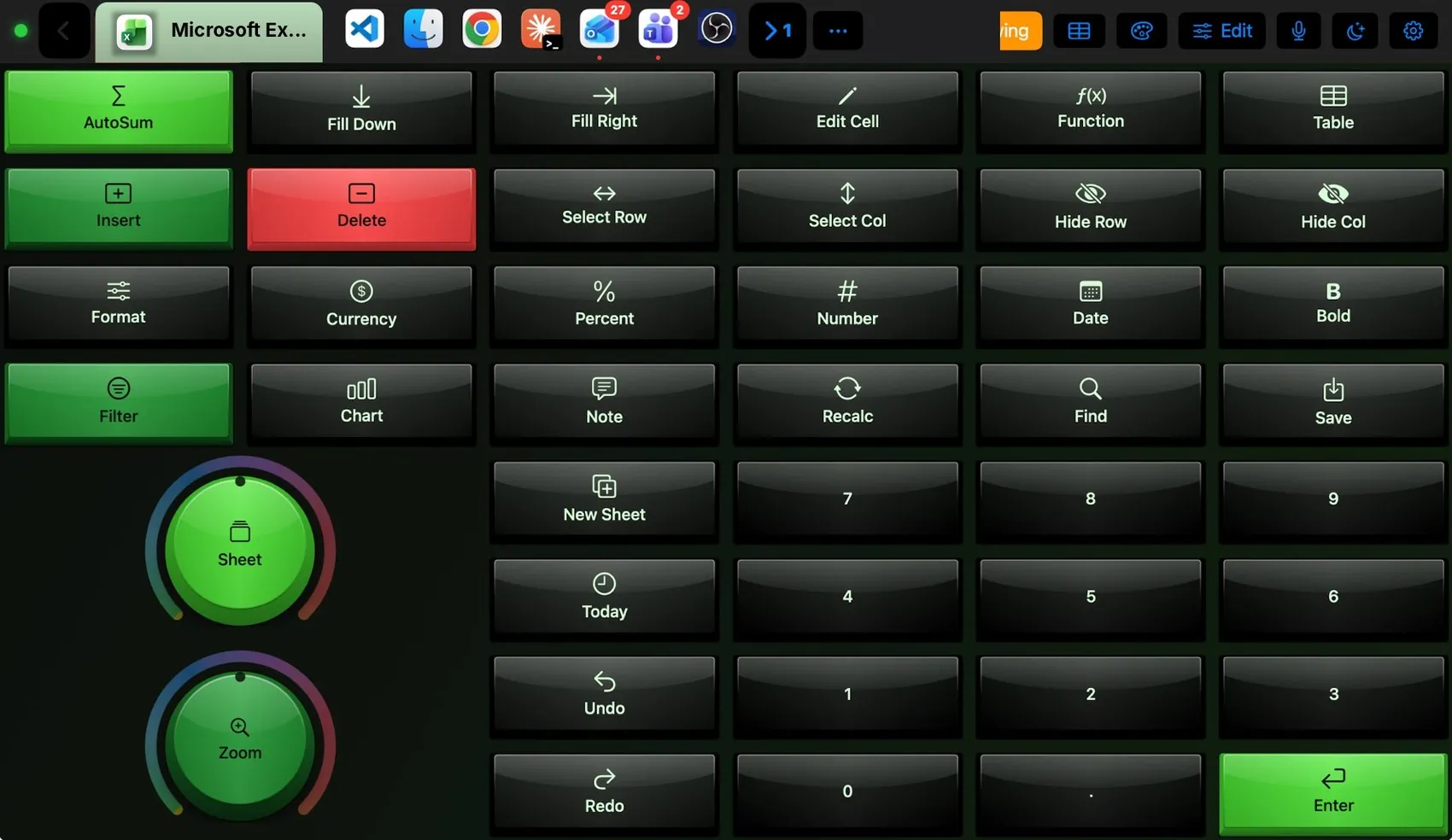
AutoSum, Fill Down and Fill Right, number formats, Filter, Chart and Find, plus a full numpad with Enter, which is handy on a laptop without one, and knobs for sheets and zoom.
Blender: orbit with a trackball
Grab, Rotate, Scale, Extrude and Loop Cut; Front, Side and Top views; select modes; Render. A big trackball orbits the viewport with momentum and a knob zooms. That is a control you would need another device for on most hardware pads.
VS Code: run, debug, commit from one row
Palette, terminal, go to definition and rename; run, debug, next error and Git; two scroll wheels, one vertical and one horizontal, and a trackpad beside the keys. Commands without a fixed shortcut are pressed as menu items by name, so they work with your own keybindings.
Claude Code and AI assistants: approve, deny, send
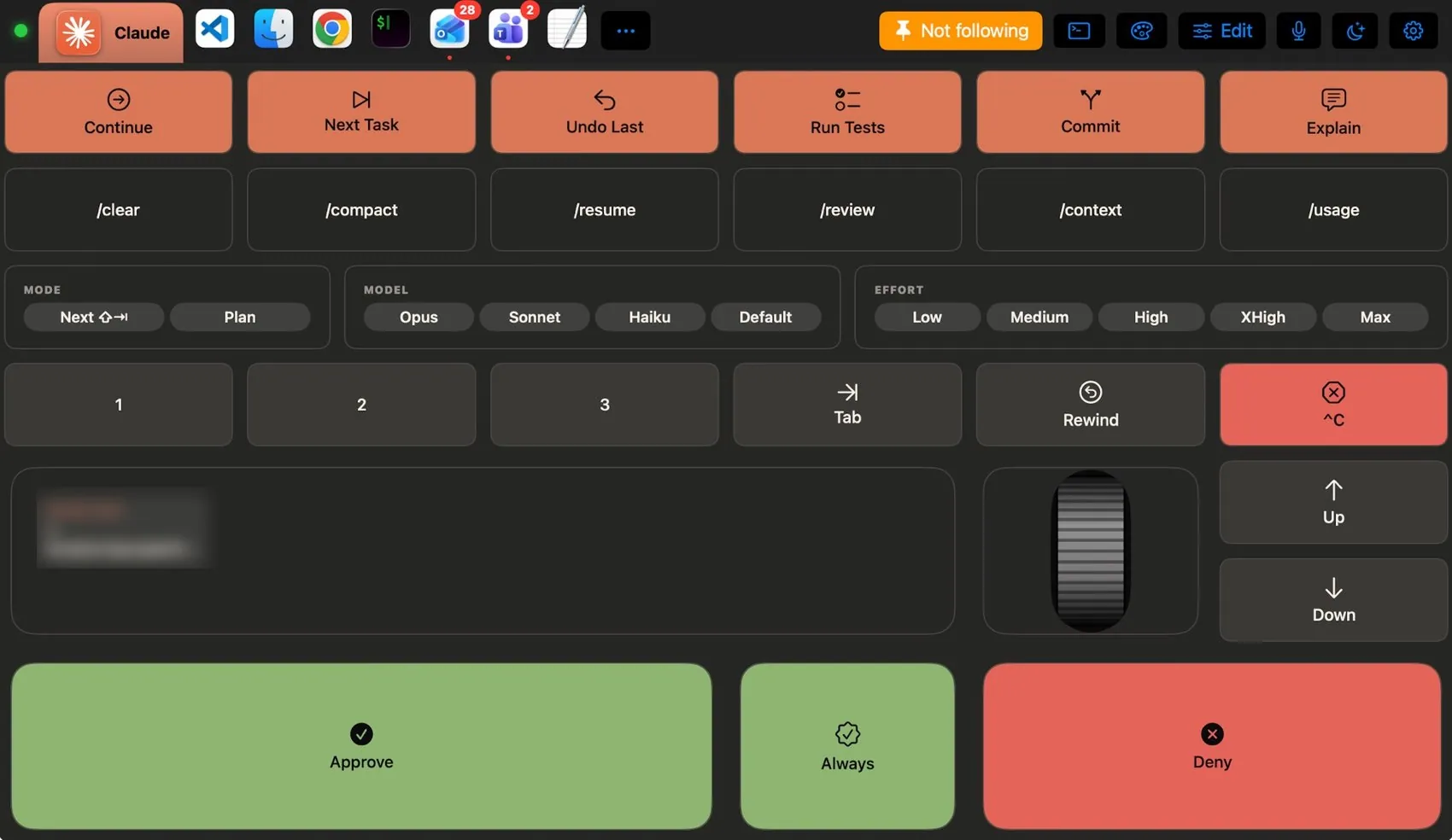
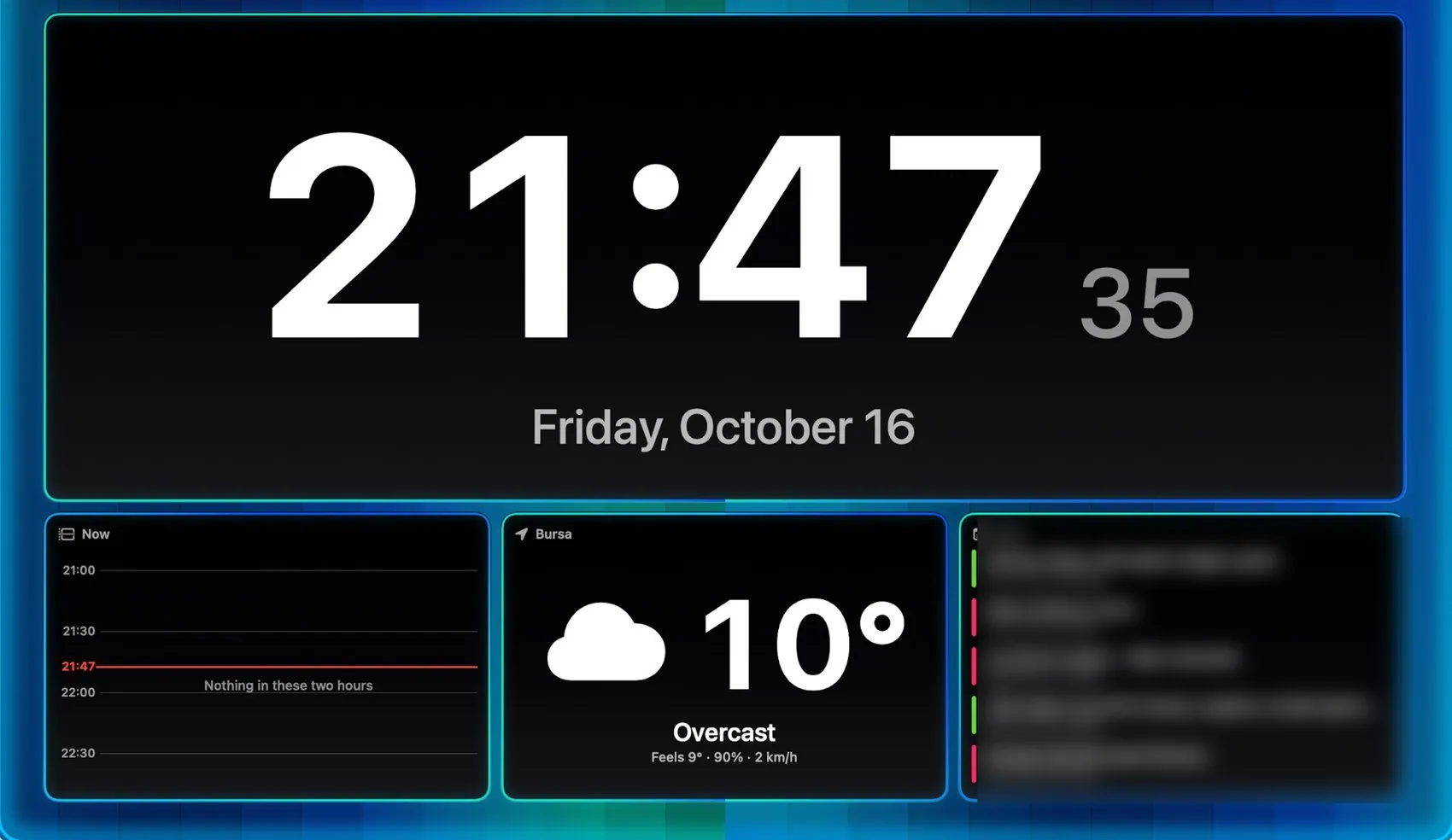
The AI Assistants layout drives Claude, ChatGPT, Gemini and Codex: new chat, ready prompts, Approve, Deny and Continue for agents, Newline and Send. When Claude Code runs in your terminal’s front tab, the pad recognizes it and shows the Claude Code layout, with mode, model and effort pickers. When the pad rests, its screensaver can show your AI sessions and what each one is waiting for.
Logic Pro: transport and knobs, or piano keys
Play / Stop and Record on wide keys, Go to Start and Cycle, track and editing commands, and knobs for volume, zoom and scrub. For playing, switch to Mini Keys 25: two octaves of piano keys with a trackball for pitch and modulation.
Why flexibility matters more than key count
A hardware deck asks you to fit every app into the same grid. That works for one app. Across eight, you end up with folders of pages, generic icons and keys you have to remember. A flexible pad turns that around:
- Each app gets the controls it needs. A trackball for Blender, a numpad for Excel, faders for OBS, piano keys for Logic Pro.
- You never pick the page. The pad follows the app in front. Pin a layout when you want it to stay.
- Several apps at once. Target a layout at one app and its keys reach that app in the background: start the OBS recording, mute Teams and set the volume while you keep cutting in Final Cut Pro.
- It grows with you. Any Mac app with a menu bar works: start a layout from its menus in a minute, or install one from the community catalog.
- It looks the way you want. 105 themes copy real keyboards and control surfaces, and any theme fits any layout.
Beyond keys
Macros are built from blocks with When, If, Then and Otherwise, and every macro is also a Siri phrase and a Shortcuts action. The microphone in the pad’s bar opens apps, sets the volume, switches layouts and runs macros by name. Widgets and plugins let you add your own controls, or bring a whole app’s layout, shortcuts and theme in one file. A plugin asks for each thing it wants to do, with a reason, and nothing in it can run code.
Getting started takes minutes
- Install iMacroPad for Mac, the free companion, and follow its setup guide for the Accessibility permission.
- Install iMacroPad on your iPad or iPhone from the App Store.
- Put both on the same network. The pad finds the Mac by itself. Bring an app to the front and its layout appears.
FAQ
Which apps does iMacroPad support?
81 built-in layouts cover apps such as Final Cut Pro, Logic Pro, Photoshop, OBS Studio, Microsoft Teams, Excel, Blender, VS Code, Claude and Claude Code, DaVinci Resolve, Figma, Xcode, Zoom and Slack, plus layouts by role. Any Mac app with a menu bar works with a layout you make.
Does the layout change automatically when I switch apps?
Yes. In Follow Mac mode the pad shows the layout of the app in front on the Mac. You can also pin a layout or target one app.
Does it work on iPhone?
Yes. The same app runs on iPhone with iOS 16 or later and uses the same layouts, scaled to the screen.
Do my keys leave my network?
No. What you press goes from the pad to the Mac over your own network only.
How much does it cost?
iMacroPad is free with every feature, and the Mac companion is free. After a few weeks the free version shows an ad beside the pad; iMacroPad Pro removes the ads with one purchase, no subscription. See the download page for details.