Software macro pad vs physical macro pad: iPad, Stream Deck or mechanical keys?
A macro pad puts the shortcuts you use all day on keys of their own. You can buy one as hardware, like a Stream Deck or a small mechanical keypad, or you can run one as software on an iPad. Both work. They are good at different things, and this guide is honest about which.
By the iMacroPad team · · 7 min read
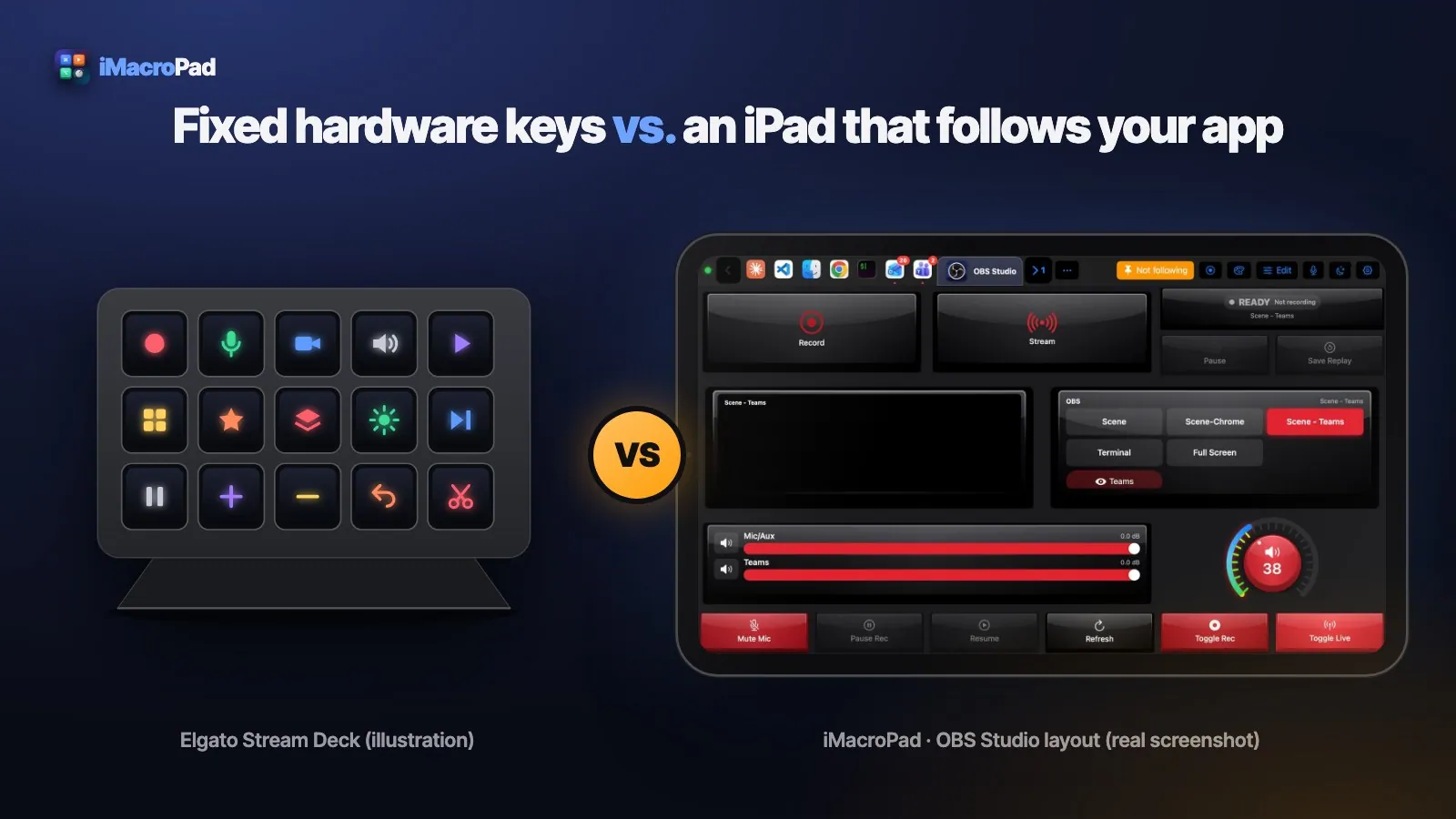
The three kinds of macro pad
LCD-key decks such as Elgato’s Stream Deck have a grid of keys, each with a small screen behind it, so every key can show its own icon. Models differ in key count, and some add dials or a touch strip. A desktop app sets up profiles and plugins.
Mechanical macro pads are small keyboards with a handful of switches and often a knob or two. Many are programmed with firmware tools, so the keys send fixed shortcuts or switch between layers. They are compact and very tactile, but the keys have no screens.
Software macro pads such as iMacroPad run on an iPad or iPhone. Everything you see is drawn on screen: keys, knobs, faders, a trackpad, a trackball. A small companion app on the Mac performs what you press.
At a glance
| Stream Deck-style LCD deck | Mechanical macro pad | iMacroPad | |
|---|---|---|---|
| Hardware | Sold separately | Sold separately | Nothing to buy: the iPad or iPhone you own |
| Number of controls | Fixed by model | Fixed by model | Up to a 6 × 8 grid, any mix and size |
| Control types | Keys; dials and touch strip on some models | Keys, sometimes knobs | Keys, knobs, faders, trackpad, trackball, scroll wheels, piano keys, color wheel, strips |
| Key labels | Icons on LCD keys | Printed or blank caps | Labels and icons on every control; photo, GIF or video on a key |
| Changes with the app in front | Yes, per-app profiles | Usually no, needs extra software | Yes, automatically: the pad follows the app in front on the Mac |
| Ready-made setups | Plugins and profiles | Mostly build your own | 81 built-in layouts, checked against each app’s menus |
| Live app state | Through plugins | No | OBS, Photoshop, Teams and the Mac’s volume, built in |
| Feel | Real keys | Real switches | Glass, with press animation, sound and haptics where the device has them |
| Connection | USB | USB or wireless | Your own network, with the free Mac companion |
What hardware does better
Start with the honest part. A physical macro pad still has real advantages:
- Touch typing for shortcuts. Real keys can be found by feel. After a week, your hand knows where Record is without looking. On glass you will glance down more often.
- It is always there. A deck plugged into the Mac is ready the moment the Mac is. It never needs charging, and it does not borrow a screen you might want for something else.
- No network in the middle. USB is about as predictable as a connection gets. iMacroPad works over your own Wi‑Fi or wired network; on a guest network that keeps devices apart, it cannot find the Mac.
- Streaming setups that already work. If your stream already runs on a Stream Deck with plugins you rely on, there is no need to replace it.
What an iPad macro pad does better
Hardware is fixed the day it is made. Software is not, and that changes what a macro pad can be.
The right controls for each job
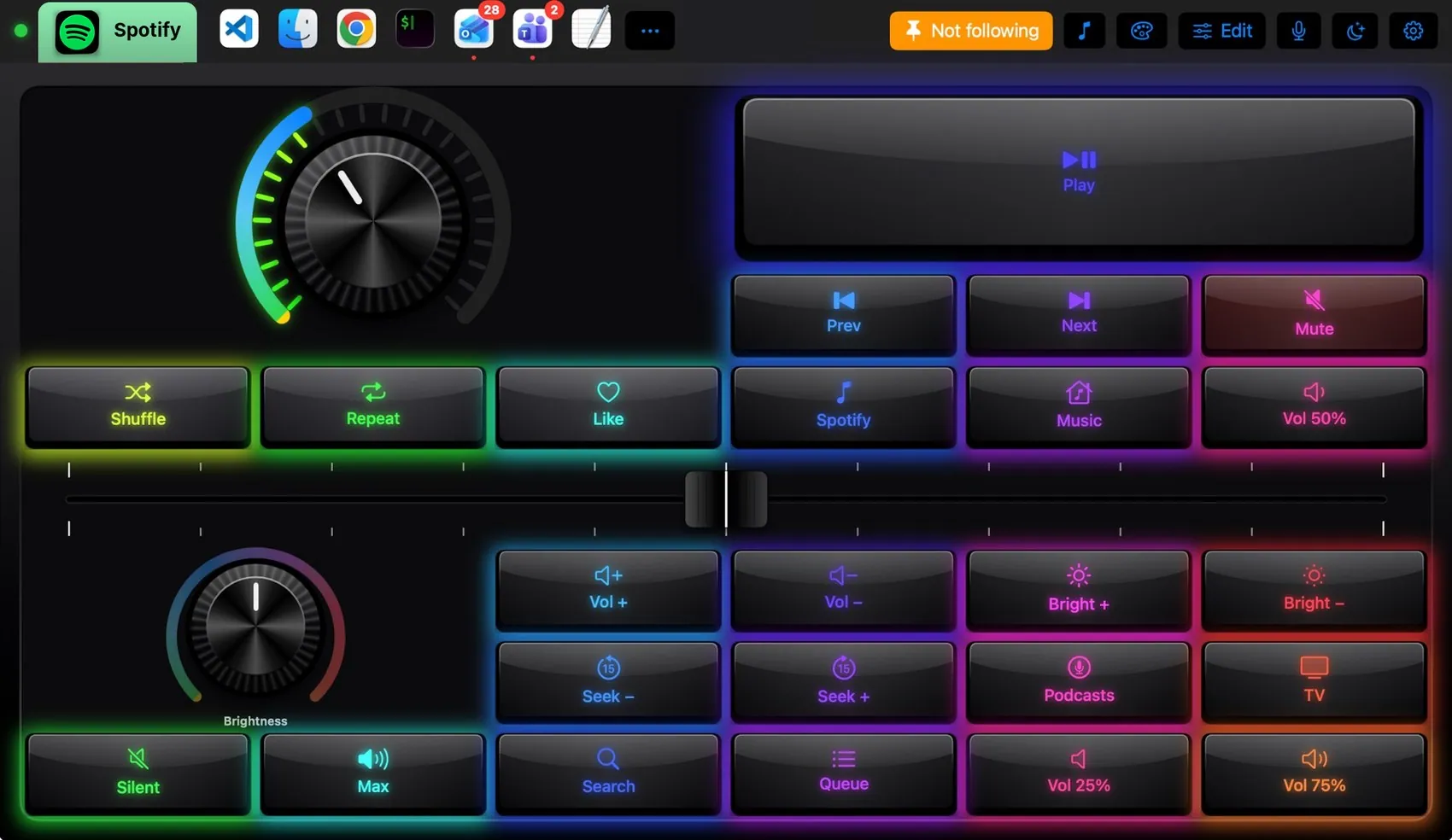
A deck is one grid, one key size, one device. On iMacroPad every control is software: put a knob, a trackball, a fader or a key anywhere, make it 1 × 1 or 4 × 4, take it away again. Logic Pro gets transport keys, a volume, zoom and scrub knob; Blender gets a big trackball to orbit the view; Excel gets a numpad; VS Code gets two scroll wheels and a trackpad.
It follows the Mac
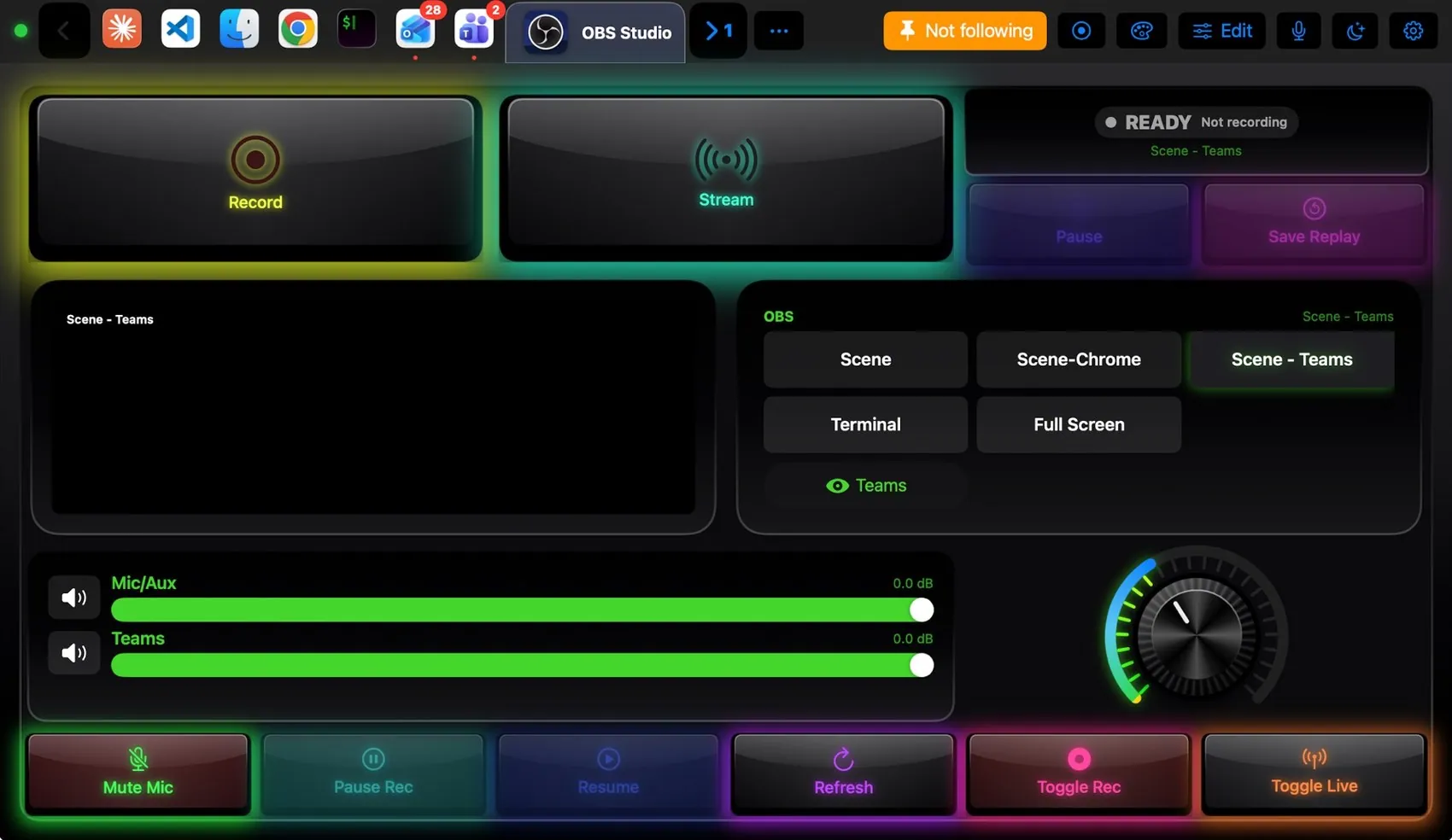
In Follow Mac mode the pad switches to the layout of whatever app is in front. You can also pin a layout, or target one app so its keys work in the background: start an OBS recording or mute Teams while you keep editing in Final Cut Pro.
It shows what is really happening
Where an app talks back, the pad shows it. Record and Stream light up only while OBS is really recording or streaming, the scene list shows what is on air, the color wheel shows Photoshop’s foreground color, and the volume knob mirrors the Mac’s volume both ways.
More than key presses
A key can send a shortcut, press any menu item by name (even one without a shortcut), run a macro or an Apple Shortcut, open an app, send a media key or type text. Macros are built from blocks with If / Otherwise and Repeat, and every macro is also a Siri phrase and a Shortcuts action.
No box to buy, nothing to outgrow
If you already have an iPad or iPhone, there is nothing to buy to get started. When your work changes, the pad changes with it: new layouts, new themes and new integrations arrive as app updates, and the community catalog adds layouts, themes and plugins made by other users.
Is iMacroPad a Stream Deck alternative for the Mac?
For many Mac users, yes. If your day is spread across editing, design, meetings, code and music, a pad that changes with each app and offers knobs, faders and a trackpad covers more ground than a fixed grid of keys. iMacroPad also includes a Streaming & YouTube role and an LCD Deck theme for people who like that look.
If you stream on Windows, need a pad that never touches your iPad, or simply want real keys under your fingers, a hardware deck is the better tool. And the two can live side by side: a deck for the stream, an iPad for the app you are editing in.
How to decide
- Count your apps. One or two apps with stable shortcuts? Hardware is simple and great. Five or more apps a day? Per-app layouts matter more.
- Check your controls. If you want knobs, faders, a trackball or a trackpad, software gives you all of them without buying another device.
- Look at your desk. If an iPad already sits next to your keyboard, it can be the pad. If it travels with you all day, a dedicated device might be steadier.
- Try before you buy. iMacroPad is free to start, so you can find out on your own desk.
FAQ
Can an iPad really replace a macro pad?
For most Mac workflows, yes. iMacroPad turns the iPad into keys, knobs, faders, a trackpad and a trackball that follow the app in front on the Mac. What it cannot give you is physical key travel, and it uses the iPad while it is the pad.
Does iMacroPad work with Windows?
No. iMacroPad controls a Mac through the free iMacroPad for Mac companion app, which needs macOS 13 or later.
Does it need a cable?
No. The iPad or iPhone and the Mac talk over your own Wi‑Fi or wired network. Both need to be on the same network, and guest networks that keep devices apart will not work.
Can I make my own layouts?
Yes. Tap Edit, drag controls around, pinch to resize and tap a key to set its label, icon, color and action. You can start from any of the 81 built-in layouts or from scratch.
Is there a subscription?
No. iMacroPad is free with every feature. After a few weeks the free version shows an ad beside the pad; iMacroPad Pro removes it with one purchase on up to two devices.