iMacroPad vs Logitech MX Creative Console
Logitech’s MX Creative Console is a popular way to get shortcuts out of your head and under your fingers on a Mac. Here is how it compares with iMacroPad, a macro pad that runs on the iPad you already own: what each one does well, where each one falls short, and who should pick which.
By the iMacroPad team · · 7 min read
The short answer
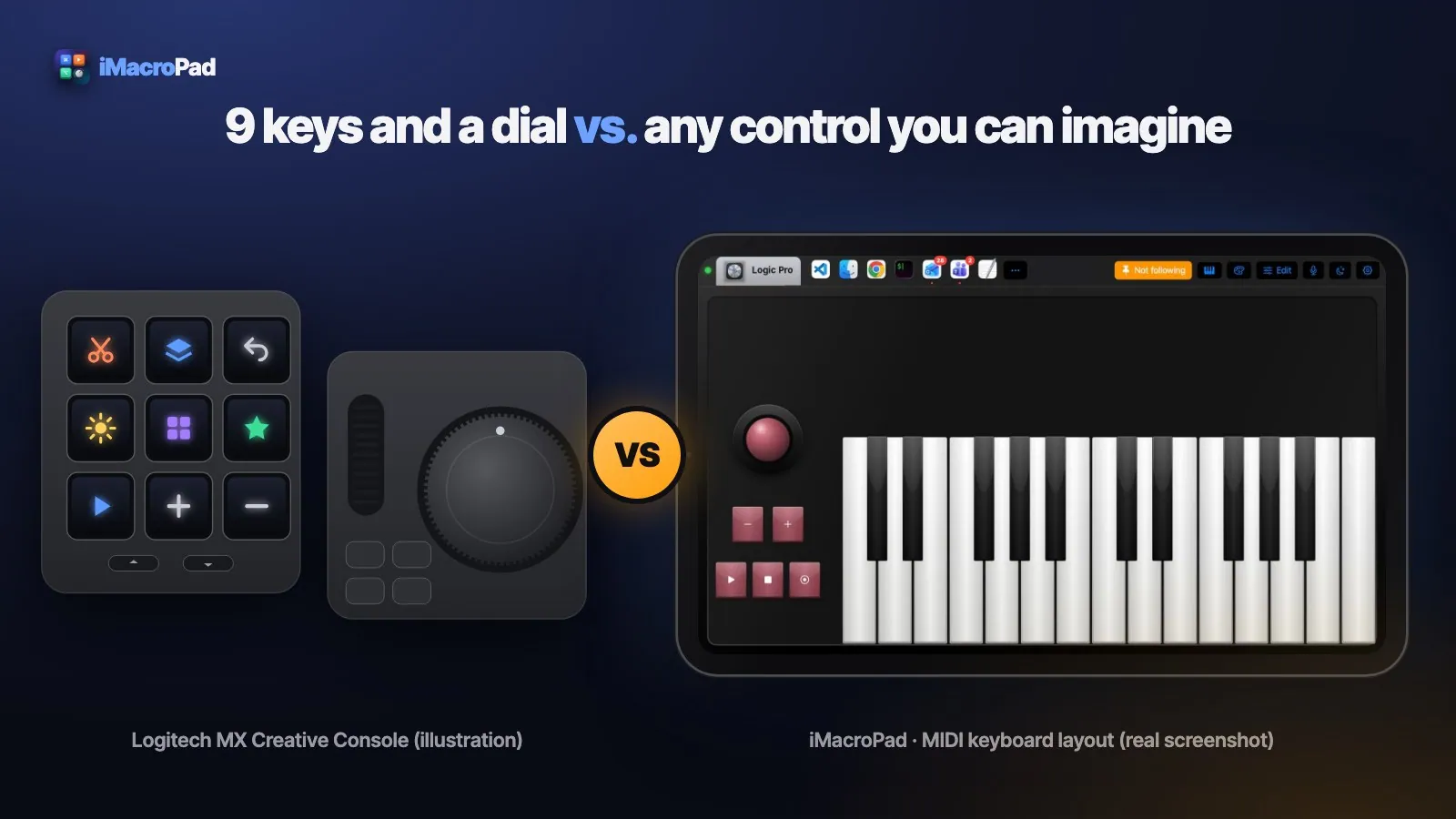
MX Creative Console is dedicated hardware for creative work: a keypad with nine customizable LCD keys and a separate dialpad with a large dial and a roller. It is tactile, it sits on your desk, and it is sold separately as hardware.
iMacroPad turns an iPad or iPhone into a fully software macro pad for the Mac. There is no fixed grid: each app gets its own layout of keys, knobs, faders, a trackpad or a trackball, and the layout changes by itself when you switch apps on the Mac. The trade-off is that it uses your iPad’s screen and has no physical key travel.
Side-by-side comparison
| Logitech MX Creative Console | iMacroPad | |
|---|---|---|
| What it is | Keypad with 9 LCD keys + dialpad | App for iPad and iPhone + free Mac companion |
| Hardware | Sold separately | Nothing to buy: the iPad or iPhone you already own |
| Custom controls | 9 keys per page, dial, roller, buttons | Keys, knobs, faders, trackpad, trackball, scroll wheels, piano keys, color wheel, on a 6 × 8 canvas |
| Per-app setups | Yes, per-app profiles in Options+ | Yes, automatically: the pad follows the app in front on the Mac and shows that app’s layout |
| Ready layouts | Profiles and plugins for supported apps | 81 built-in layouts by app and by role |
| Shows app state | Key icons | Live state where the app reports it: OBS recording, Photoshop’s color, Teams’ mic, the Mac’s volume |
| Looks | One design | 105 themes, a theme editor, pictures, GIFs or video on any key |
| Tactile feel | Real keys, real dial | Glass, with press animation, click sounds and haptics where the device has them |
| Connection | Bluetooth or USB | Your own Wi‑Fi or wired network, Mac companion running |
MX Creative Console: tactile and focused
MX Creative Console is aimed squarely at creative apps. The keypad gives you nine display keys that can show icons, with buttons to page through more sets. The dialpad adds a big dial and a roller for continuous values like brush size, zoom or timeline scrubbing. It is a well-made piece of hardware, and for people who want a physical dial next to the mouse it is genuinely pleasant to use.
Where it is narrower: nine keys per page, one dial, one roller, in a fixed arrangement. Each extra page is another press away, and the hardware cannot grow a fader, a trackball or a numpad when an app needs one.
iMacroPad takes a different approach. It has a built-in Creative Console layout and theme with display-style keys, a large dial, a roller and round buttons, so you can try that workflow on your iPad, then change it: add more keys, put a second dial next to the first, drop in a trackpad, or switch to a completely different layout for the next app.
Where a software macro pad pulls ahead
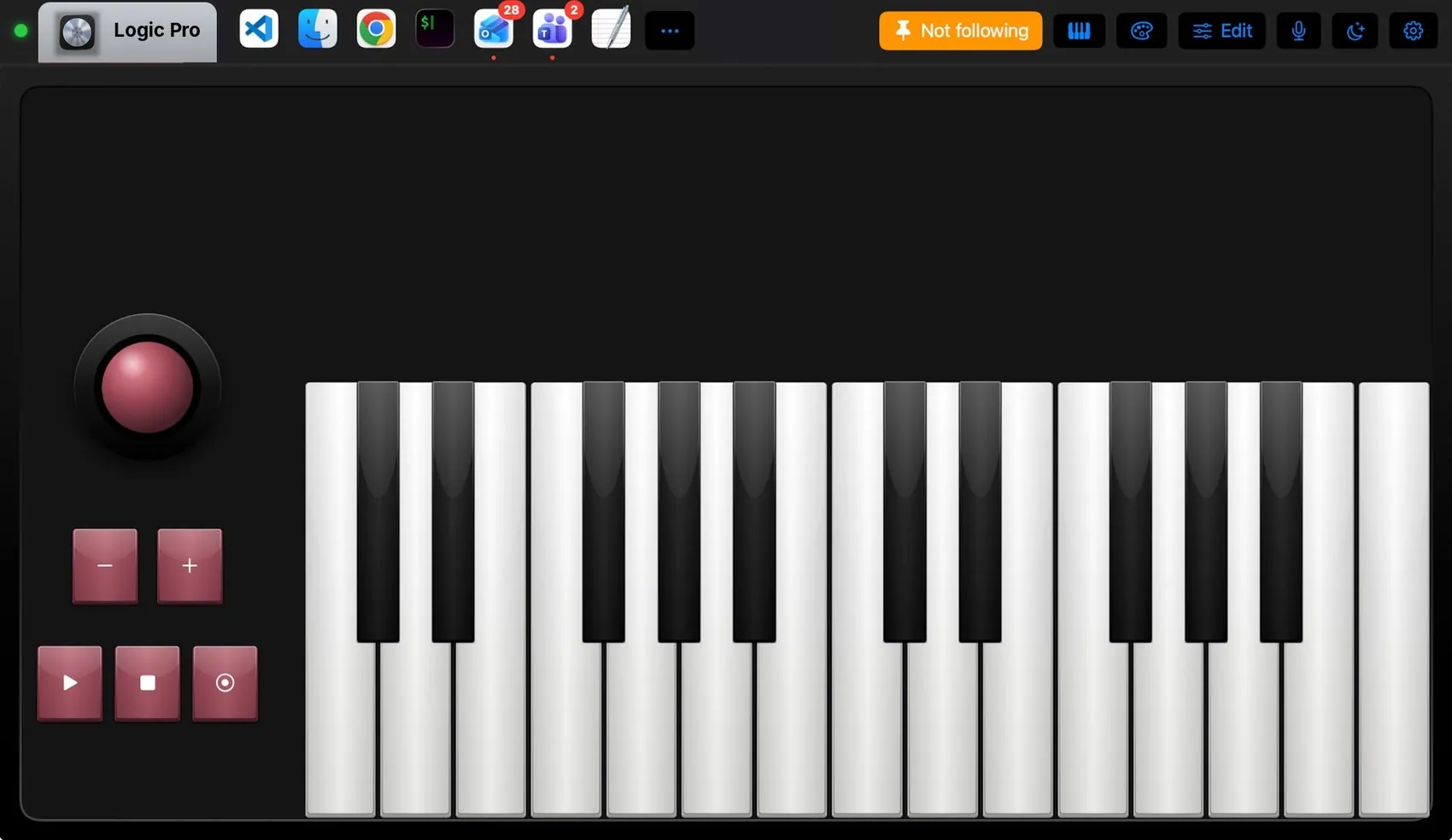
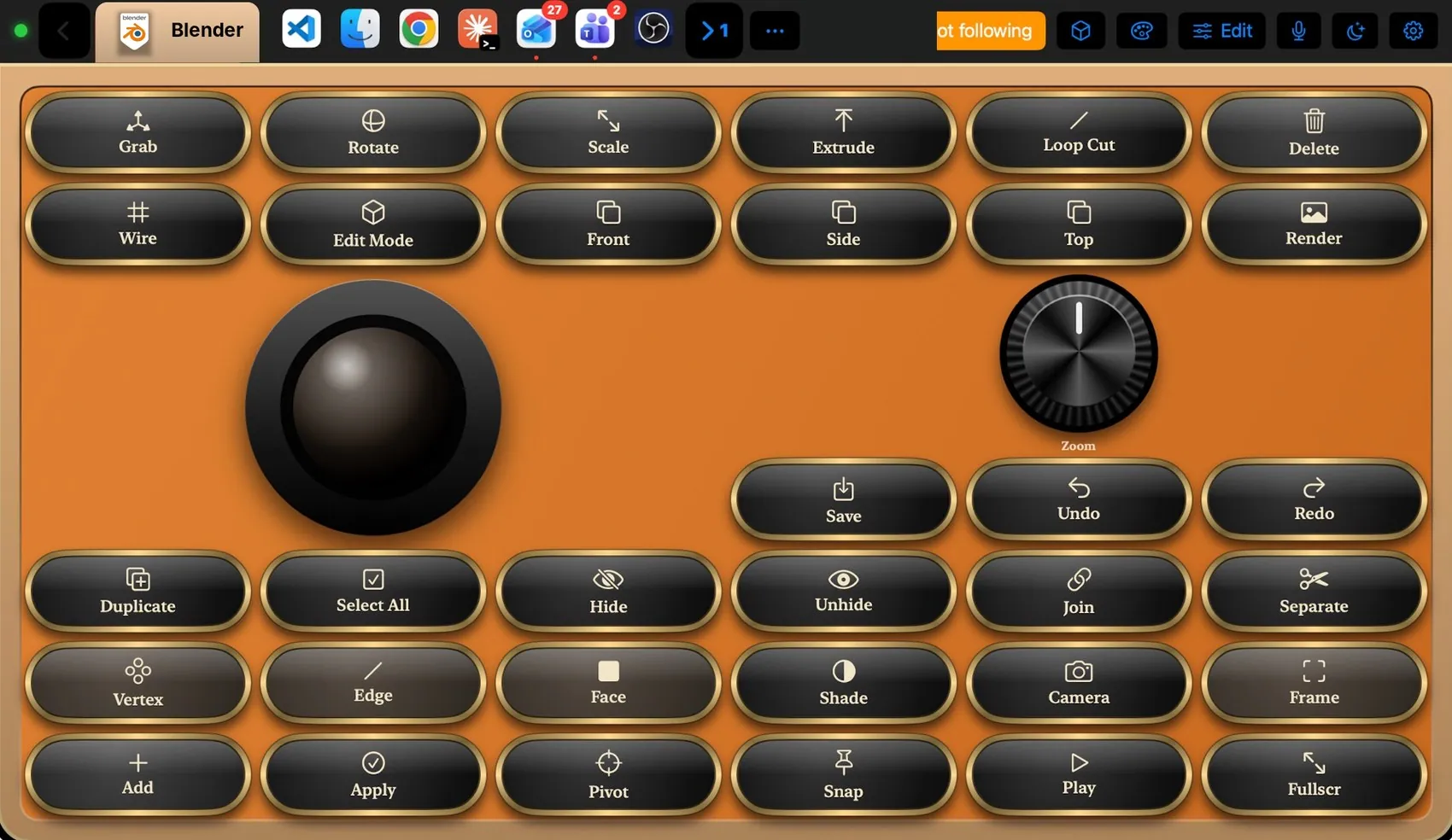
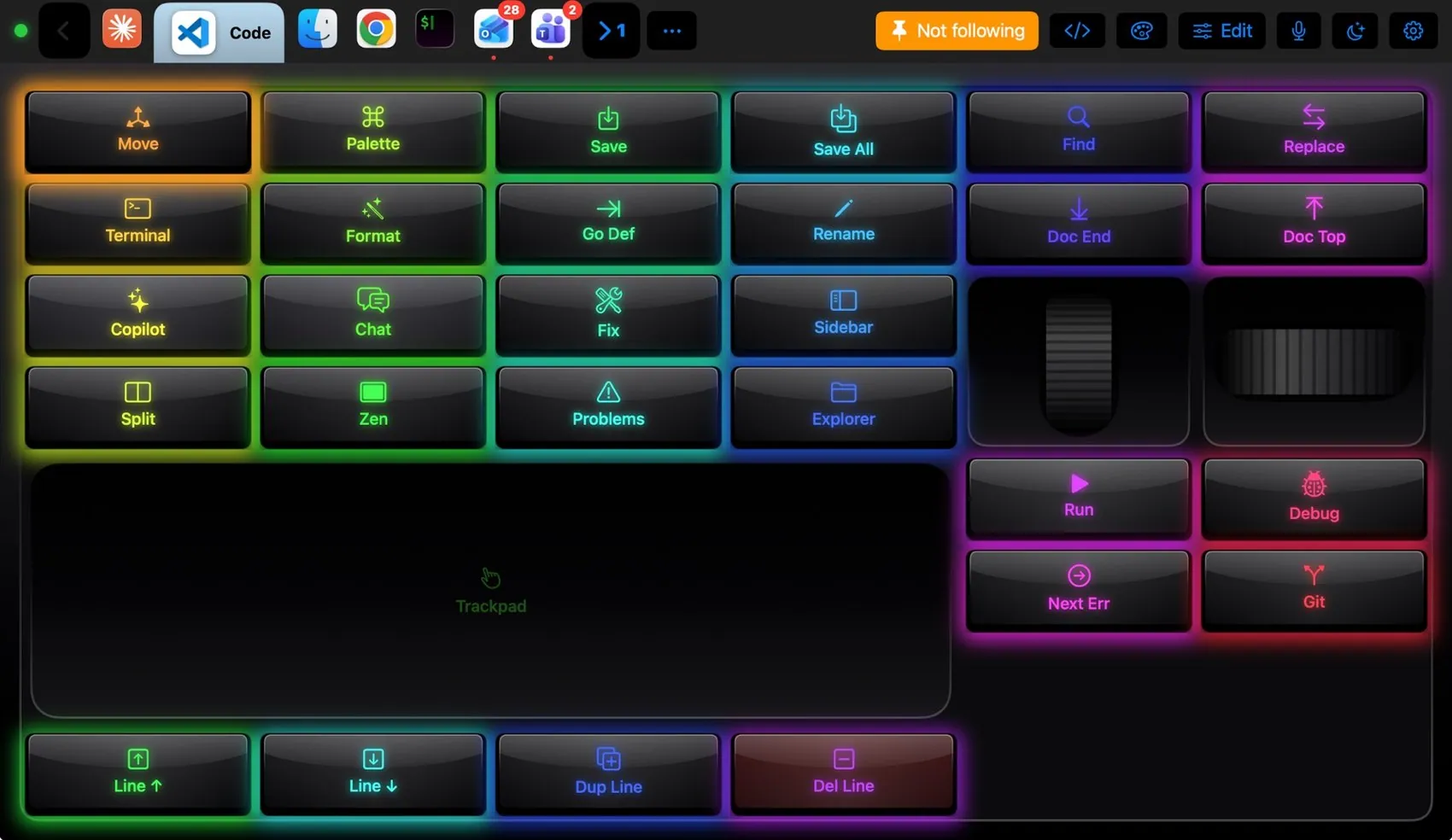
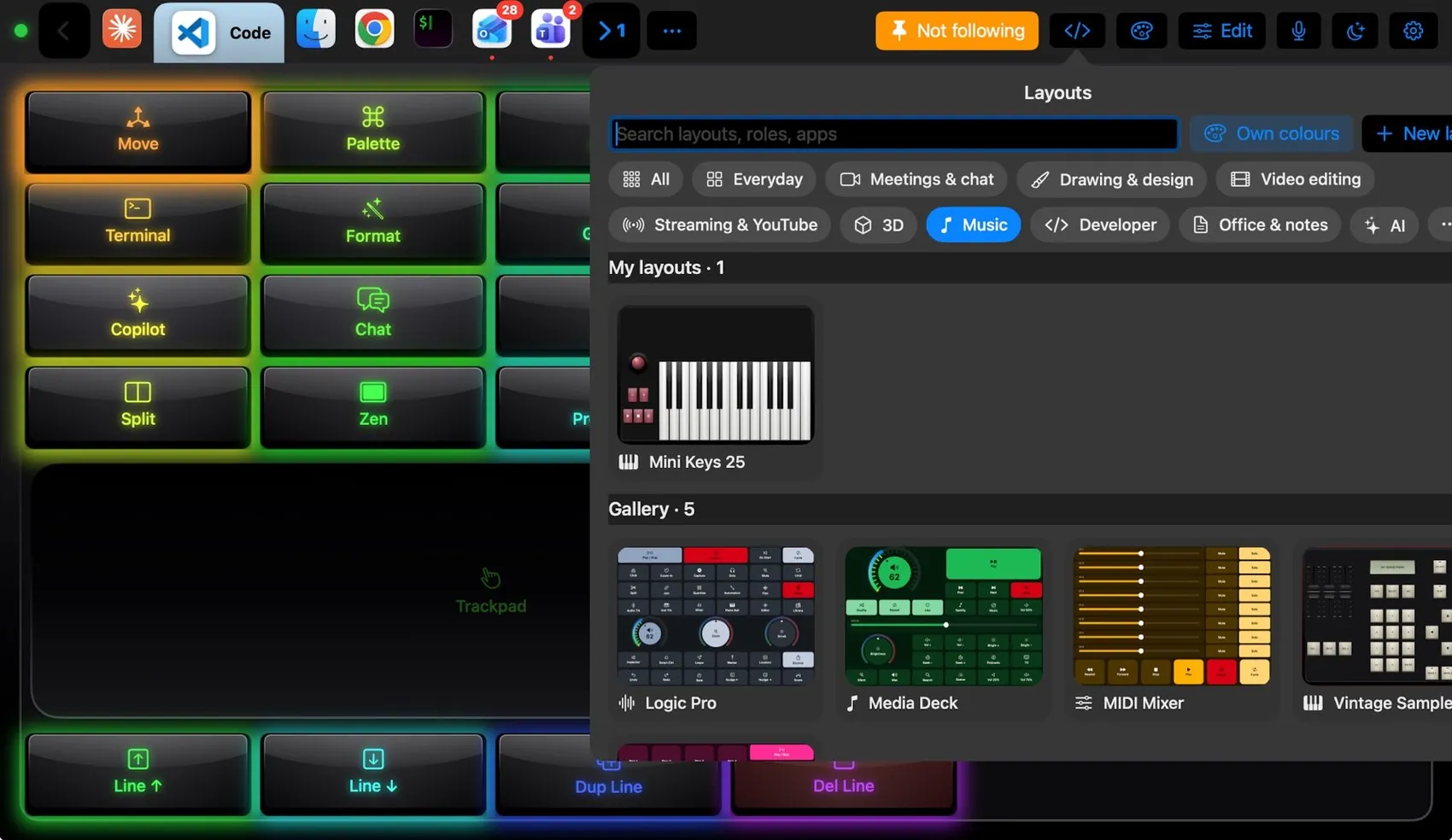
- Per-app layouts that switch by themselves. In Follow Mac mode, bring Final Cut Pro, Photoshop or VS Code to the front and the pad shows that app’s layout. Pin a layout to keep it, or target one app so its keys work while you are in another.
- A canvas, not a grid. Every control is software. Make a key 1 × 1 or 4 × 4, put a knob, a fader, a trackball or a scroll wheel anywhere, and take it away again. Tap Edit, drag to move, pinch to resize.
- Labels that are always right. Each key shows its own label and icon, and where the app reports state, the key shows it: Record lit only while OBS is really recording, the mic key showing Teams’ mute.
- Any action. A key can send a shortcut, press any menu item by name, run a macro or a Shortcut, open an app, send a media key or type text.
- Macros and voice. A block-based macro editor with If / Otherwise and Repeat, Siri phrases, and a microphone in the pad’s bar.
- Looks. 105 themes copy real keyboards and control surfaces, and you can put a photo, GIF or looping video on any key.
Where Logitech hardware wins
To be fair, there are good reasons to choose dedicated hardware:
- Feel. Real keys and a real dial give you travel and resistance you can find without looking. iMacroPad adds press animation, click sounds and haptics where the device has them, but glass is still glass.
- No screen needed. MX hardware leaves your iPad free. iMacroPad turns the iPad into the pad while you use it.
- Direct connection. A Bluetooth or USB device does not depend on your network. iMacroPad talks to the Mac over your own Wi‑Fi or wired network, so a guest network that keeps devices apart will not work.
- Battery and setup. A keypad on the desk just sits there. A tablet needs charging, and the Mac companion needs Accessibility permission once.
Which should you choose?
Choose MX Creative Console if you work mainly in a few creative apps, want a physical dial, and prefer hardware that never touches your iPad.
Choose iMacroPad if you jump between many apps in a day, want a different, fully editable set of controls for each one, and already have an iPad or iPhone. It is free to start, so you can find out on your own desk before buying any hardware. And since it works alongside your keyboard, it is not either/or.
FAQ
Is iMacroPad a good MX Creative Console alternative on the Mac?
If you already own an iPad or iPhone, yes for most workflows: it has a built-in Creative Console layout with display-style keys, a large dial and a roller, plus 81 other layouts that switch with the app in front. If you need physical keys and a real dial, the Logitech hardware is the better fit.
Can I use iMacroPad together with Logitech devices?
Yes. iMacroPad sends its keys through a small companion app on the Mac, so it works next to any keyboard, mouse or console. There is a built-in macro pack for Logi Options+.
Does iMacroPad switch layouts per app like Logi Options+?
Yes. In Follow Mac mode the pad changes to the layout of whatever app is in front on the Mac. You can also pin a layout or target one app so its keys work while you are in another.
What do I need to run iMacroPad?
A Mac with macOS 13 or later running the free iMacroPad for Mac companion, an iPad with iPadOS 16 or an iPhone with iOS 16 or later, and both on the same network.
Is iMacroPad free?
Yes, with every feature. After a few weeks the free version shows an ad beside the pad. iMacroPad Pro removes the ads for good on up to two devices, with one purchase and no subscription.